Camera setup
Add Cameras to SmartRTSP
SmartRTSP supports ONVIF discovery and manual RTSP/RTSPS entry. Use ONVIF when the camera supports it; use manual URL entry when you already have the exact stream path from the camera app, web UI or NVR.
Last updated: July 6, 2026
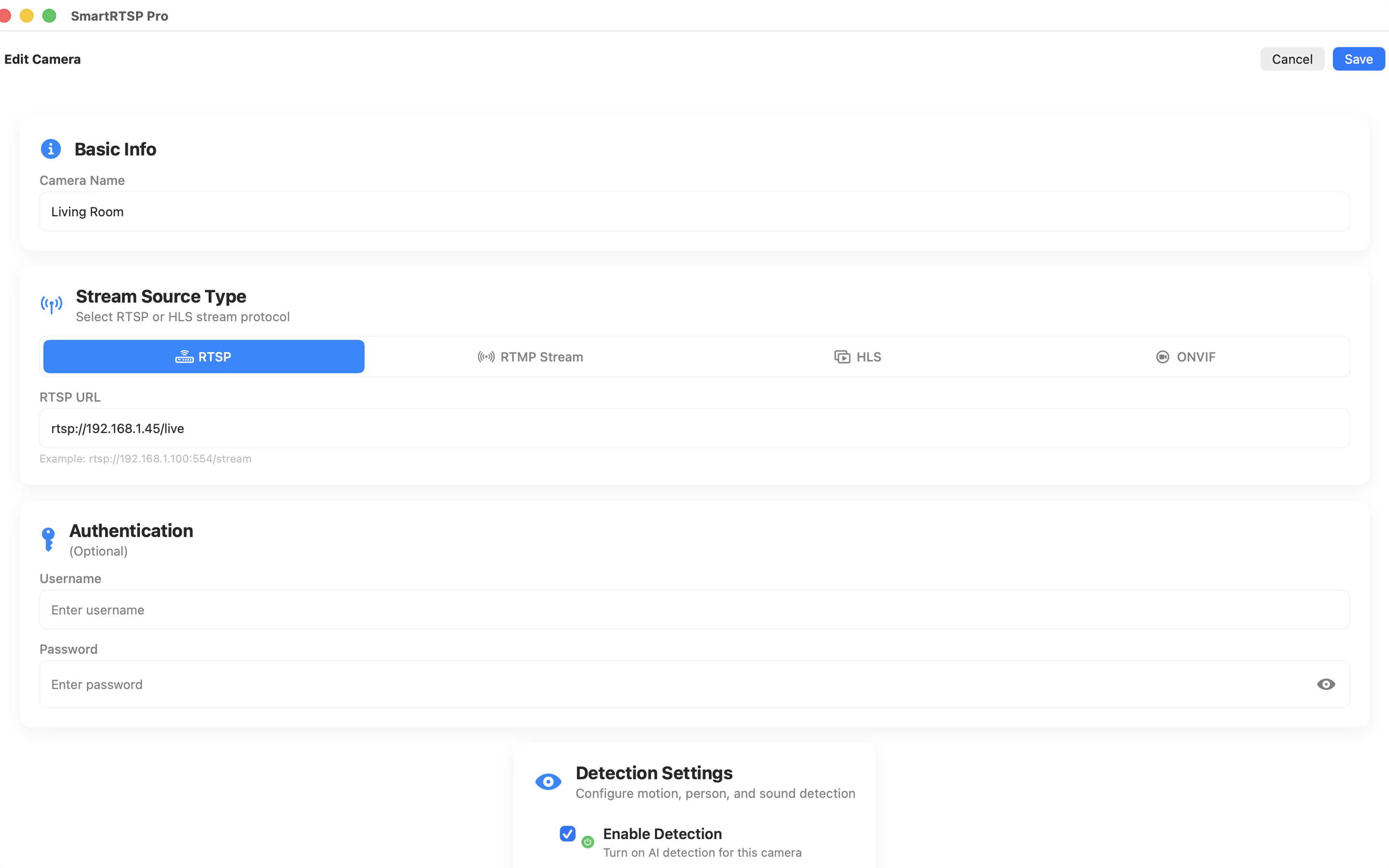
Validate the camera after saving it
Use SmartRTSP’s scan for a reachable ONVIF camera or enter a documented RTSP address manually. Open the saved camera to verify live playback.
Check audio and supported controls independently, then record the working profile for later troubleshooting.
Which add method should you use?
| Method | Best for | Notes |
|---|---|---|
| ONVIF Scan | Hikvision, Dahua, Reolink, Axis, Bosch, Hanwha, Tapo and other ONVIF cameras | Discovers device metadata, profiles, snapshot URL and PTZ capability when available. |
| Manual RTSP URL | Known URL formats such as /stream1 or /Streaming/Channels/101 | Use camera account credentials, not necessarily your cloud account password. |
| Local Camera | Using the iPhone camera as a local source inside SmartRTSP workflows | Useful for test setups and local monitoring scenarios. |
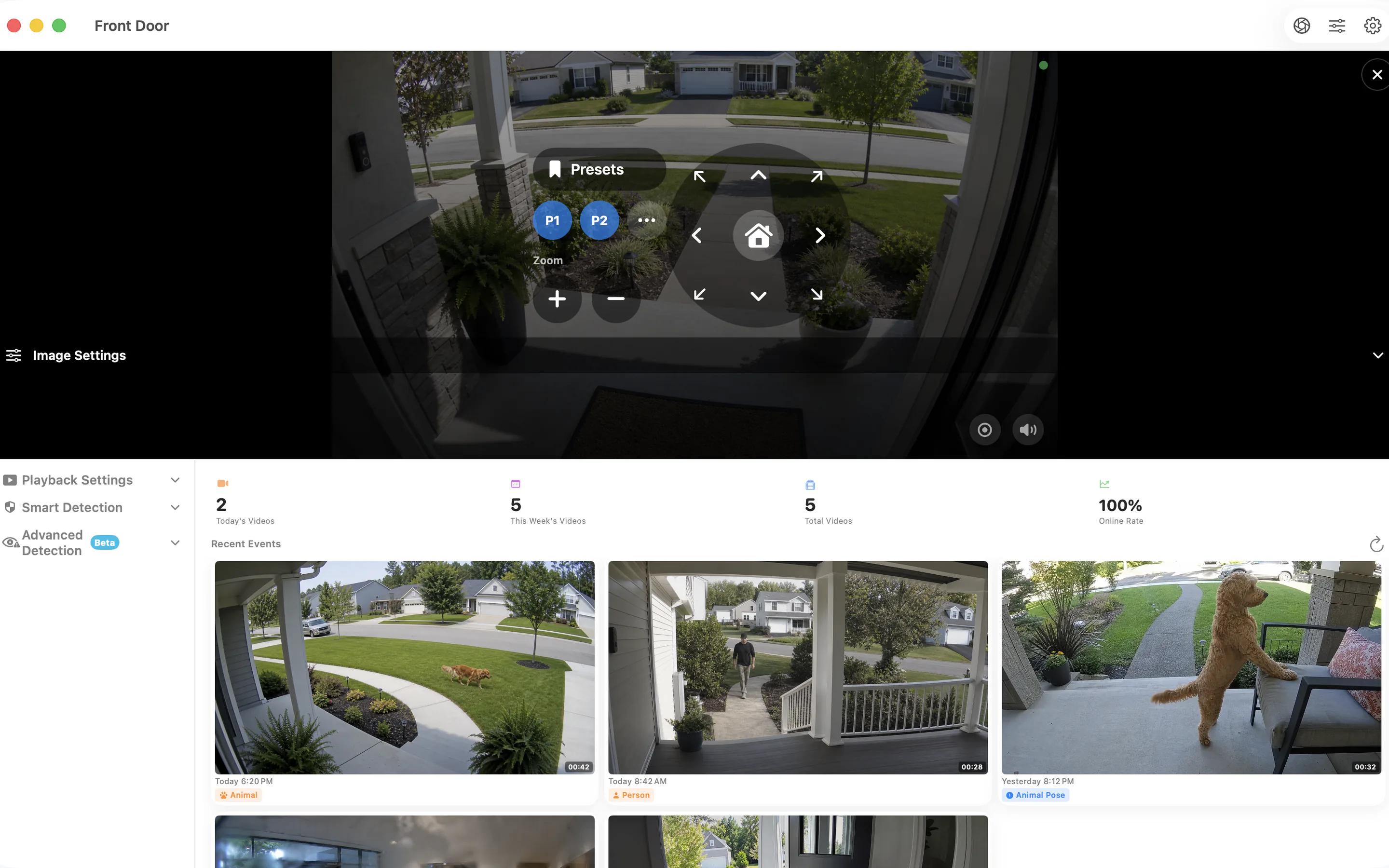
Connection checklist
- Camera and device are on the same local network or VPN.
- RTSP or ONVIF is enabled in the camera app or web UI.
- Username and password belong to the camera account.
- Use sub-stream for mobile grids if the main stream is too heavy.