What is ONVIF Device Manager?
ONVIF Device Manager, often shortened to ODM, is a free Windows utility originally developed in the ONVIF ecosystem and widely distributed through SourceForge. It is one of the most common tools people use when they need to discover ONVIF cameras on a local network and figure out the right RTSP URL.
In practice, ODM works like a diagnostic control panel for IP cameras. It can scan the LAN for ONVIF devices, list available media profiles, show device capabilities, test live view, expose PTZ controls, and often reveal the RTSP stream URI that another viewer or NVR needs.
That is why installers and advanced users still keep it around. Even if you do not want to use ODM as your everyday viewer, it is extremely helpful for identifying cameras, confirming ONVIF is enabled, and copying the exact stream path for VLC, SmartRTSP, Frigate, Blue Iris, or Agent DVR.
ONVIF setup in SmartRTSP
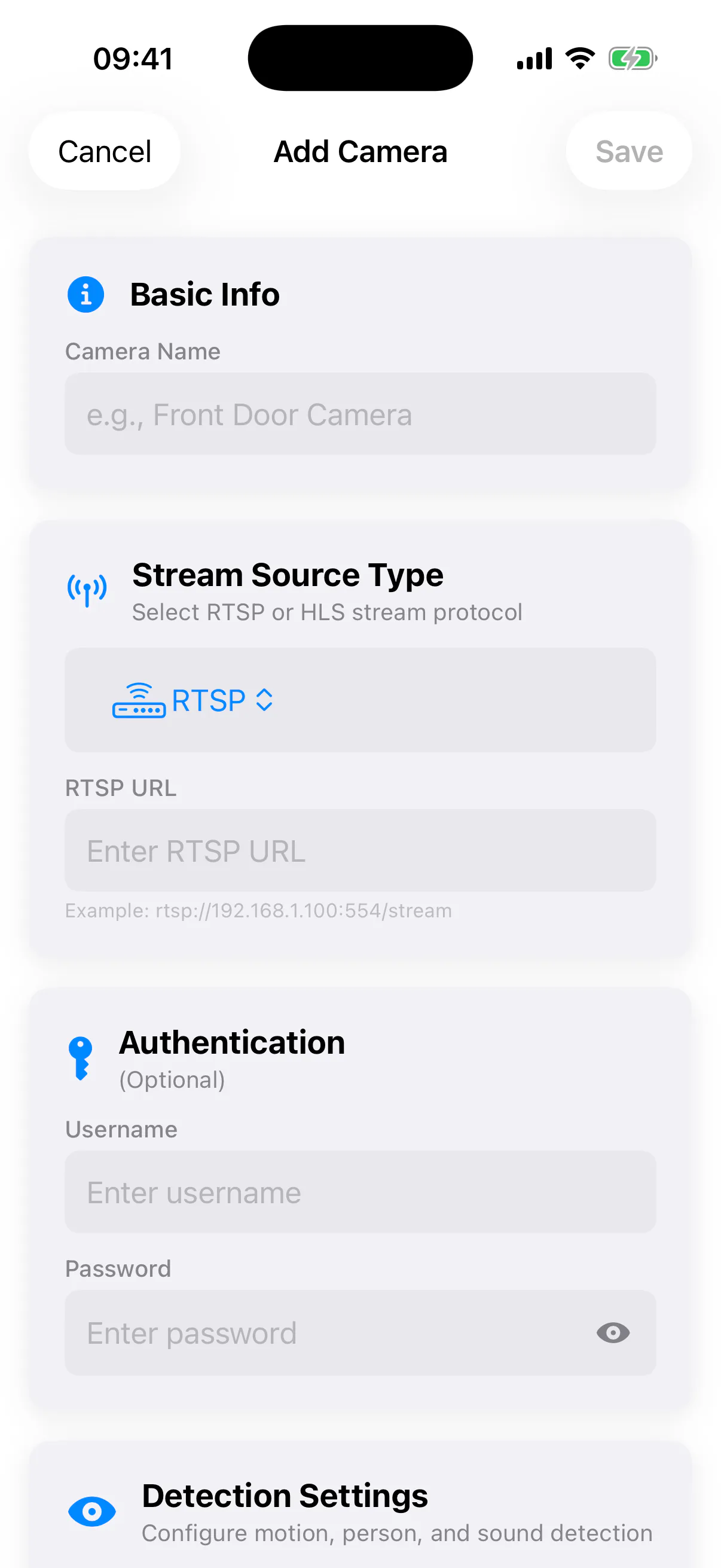
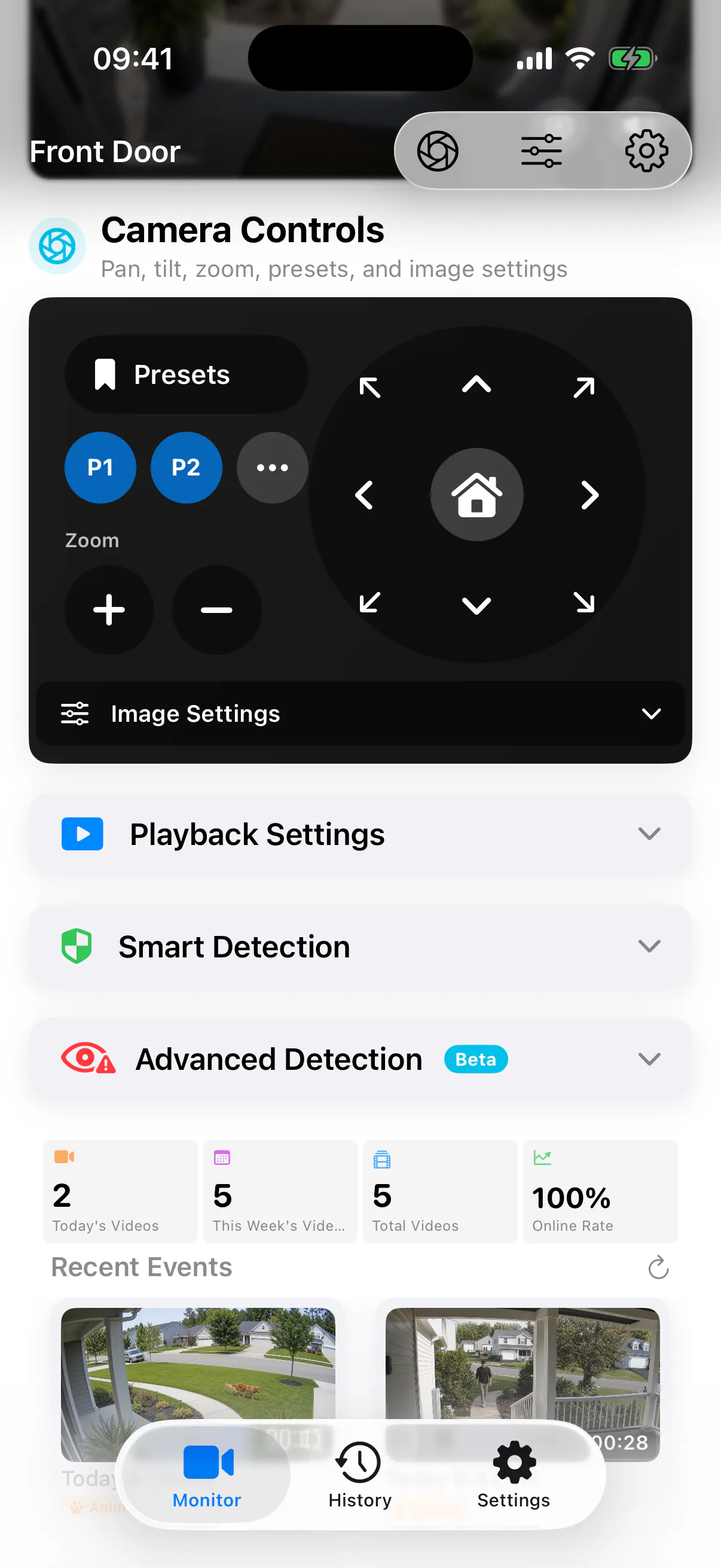
These app screenshots show the in-app camera setup flow and ONVIF controls that replace a Windows-only ODM workflow for many users.
ONVIF Device Manager vs SmartRTSP ONVIF Scan
| Feature | ODM (Windows) | SmartRTSP (iPhone/Mac) |
|---|---|---|
| Platform | Windows only | iOS + macOS |
| Auto-discover | ✅ | ✅ |
| RTSP URL retrieval | ✅ | ✅ |
| Live view | ✅ | ✅ |
| PTZ control | ✅ | ✅ |
| Multi-camera | ✅ | ✅ 2x2 grid |
| Recording | ❌ | ✅ |
| Cost | Free | Free |
ODM is still excellent when you are at a Windows desk doing installation or troubleshooting. SmartRTSP is better when you want the same ONVIF convenience on iPhone, iPad, or Mac without a Windows-only utility in the loop.
Step-by-Step: Using ONVIF Device Manager
Download ODM from SourceForge
Start with the official ONVIF Device Manager download page. This is the source most users mean when they search for ONVIF Device Manager download.
Run it as administrator
On many Windows systems, running ODM as administrator helps with WS-Discovery and firewall prompts. If scan results are inconsistent, this is one of the first things to try.
Click Refresh to scan your network
Make sure your Windows PC is on the same LAN or VLAN as the camera. Then click Refresh or Find and wait for devices to appear in the left-hand list.
Select a camera from the results
Click the discovered device to inspect basic information such as manufacturer, model, network address, supported services, and media endpoints.
Enter credentials and retrieve profiles
If the camera requires authentication, enter the correct username and password. ODM can then query media profiles and often display both main-stream and sub-stream RTSP URIs.
Copy the RTSP URL into your viewer
Take the discovered RTSP URL and paste it into VLC, Blue Iris, Frigate, or SmartRTSP. This is the main reason many people use ODM in the first place.
Why ONVIF Discovery Sometimes Fails
Different subnet or VLAN
WS-Discovery is usually local-network multicast. If your camera lives on another subnet, guest network, or isolated VLAN, ODM may never see it unless routing and multicast relays are configured.
Windows firewall blocks discovery
ONVIF discovery depends on UDP 3702. If Windows Firewall blocks it, ODM can look empty even though the camera is online. Add a firewall exception or allow the app when Windows prompts you.
ONVIF disabled by default
Some Hikvision and Dahua models ship with ONVIF disabled or require a dedicated ONVIF user. Enable ONVIF in the camera web UI, then rescan.
Managed switch multicast issues
If multicast is filtered or snooping is misconfigured, discovery packets may never reach the camera. In that case, connect by direct IP and manually test RTSP.
Camera shows up but will not connect
That usually means the wrong credentials were entered, the ONVIF user lacks privileges, or the camera exposes ONVIF but not the profile you expected.
Try SmartRTSP as a second check
If ODM is inconsistent, a second ONVIF client can confirm whether the problem is Windows networking or the camera itself. SmartRTSP can do that from iPhone or Mac.
On Windows, open Windows Defender Firewall → Allow an app or create an inbound rule for UDP 3702 if WS-Discovery traffic is being blocked. This is one of the most common reasons ODM fails to auto-populate cameras.
ONVIF Camera Profiles Explained
Profile S
Profile S is the classic ONVIF streaming profile. It covers live video streaming, PTZ, and basic interoperability between cameras and viewers.
Profile G
Profile G focuses on recording and stored video. It matters more for NVR workflows than for quick live-view troubleshooting.
Profile T
Profile T adds more modern video features, including H.265 and advanced imaging capabilities. Many current cameras advertise Profile T alongside Profile S.
Profile M
Profile M is about metadata and analytics. It becomes relevant when cameras expose AI events, object metadata, or other machine-readable intelligence.
ONVIF and RTSP: How They Relate
People often confuse ONVIF and RTSP, but they solve different problems. ONVIF is about discovery, capabilities, device management, and interoperability. RTSP is the protocol that usually carries the actual live stream.
In other words: ONVIF helps you find the camera and retrieve the stream details, while RTSP is what your viewer uses to play the feed.
That is why ODM is so useful: it bridges the gap between “I know there is a camera on this network” and “I have the exact RTSP URL I can paste into another app.”
ONVIF Device Manager Alternatives
| Tool | Platform | Price | Best for | Notes |
|---|---|---|---|---|
| ONVIF Device Manager | Windows | Free | Discovery & diagnostics | Powerful, but the UI feels technical and dated. |
| SmartRTSP | iPhone / iPad / Mac | Free | Fast camera setup | Tap to scan with ONVIF, then watch live streams. Recommended. |
| ONVIF Device Test Tool | Windows | Free | Conformance testing | More technical than ODM and aimed at verification workflows. |
| VLC | Desktop | Free | Manual playback | No ONVIF scan. You must already know the RTSP URL. |
| Synology Surveillance Station | NAS | Paid | Recording & management | Great NVR platform, but overkill if you only want simple viewing. |
Using ONVIF Discovery on iPhone (SmartRTSP)
You do not need a Windows PC just to discover an ONVIF camera. SmartRTSP includes built-in ONVIF scanning on iPhone, iPad, and Mac.
Open the app, tap scan, and compatible cameras appear automatically. From there, you can connect immediately instead of copying URLs between multiple tools.
Open SmartRTSP → tap Scan → select your ONVIF camera → start watching live video. No Windows-only utility required.
What ODM Can Tell You About a Camera
Model and vendor details
ODM can reveal the manufacturer, firmware hints, device service endpoints, and other details that make later troubleshooting much easier.
Available stream profiles
Many cameras expose a main stream and one or more sub streams. ODM helps you see those profiles before you paste the URI into another viewer.
PTZ and imaging capabilities
If the camera supports pan, tilt, zoom, presets, or imaging adjustments, ODM is often the quickest place to confirm the capability exists.
Authentication and permission issues
If the device appears but media profiles do not load, the problem is often the ONVIF account rather than the network. ODM makes that easier to spot.
Best Practices for Faster ONVIF Discovery
- ✓Put your Windows PC on the same subnet as the cameras before assuming ONVIF is broken.
- ✓Enable ONVIF in the camera web UI and create a dedicated ONVIF user if the vendor requires it.
- ✓Run ODM as administrator so Windows networking and firewall prompts do not silently block WS-Discovery.
- ✓If multicast discovery fails, connect by direct IP and manually test RTSP to separate discovery issues from streaming issues.
- ✓Keep SmartRTSP or another second ONVIF client around so you can cross-check whether the issue is camera-side or ODM-specific.
When ODM Still Makes Sense
Installer bench testing
ODM is still convenient when you have multiple new cameras on a switch and want to identify them quickly before handing them off to an NVR.
Low-level troubleshooting
It is useful when you need to confirm whether ONVIF itself works before you blame a specific viewer, recorder, or automation stack.
Windows-based support workflows
If your customer, office, or integration environment is already Windows-centric, ODM remains one of the simplest free diagnostic tools to keep around.
Manual Fallback When ONVIF Discovery Fails
1. Confirm the camera IP
Use your router, DHCP list, or a basic ping scan to confirm the camera's address first. Discovery can fail even when the camera is online and reachable.
2. Check the vendor web UI
Look for ONVIF settings, RTSP enablement, and whether the vendor requires a dedicated ONVIF account separate from the admin login.
3. Test RTSP directly
If you know the brand, try a known RTSP path in VLC or ffplay. This helps separate ONVIF discovery problems from core streaming problems.
4. Return to ODM or SmartRTSP
Once RTSP is working and ONVIF is enabled, rescan in ODM or try SmartRTSP's ONVIF scan from an iPhone or Mac on the same LAN.
Where ODM Fits in a Modern Camera Workflow
Discovery first
Use ODM to discover the device, inspect capabilities, and confirm the correct profile before you commit the stream to an NVR or automation stack.
Viewer second
After discovery, most users move to a dedicated viewer like SmartRTSP, VLC, or a recorder such as Blue Iris, Agent DVR, or Frigate.
Useful for support
Because ODM exposes low-level ONVIF details, it is a strong troubleshooting reference when a camera says it supports ONVIF but an app cannot find it.
Not the final destination
Its interface is functional rather than polished. For daily live view, multi-camera layouts, and recordings, most people quickly move into a different app.
Quick Takeaway
Use ODM when you need a free Windows discovery tool. Use SmartRTSP when you want that same ONVIF convenience directly on iPhone, iPad, or Mac.