SmartRTSP's multi-camera grid lets you view 4 or more RTSP and ONVIF cameras simultaneously in a hardware-accelerated grid layout. Each camera stream is decoded independently using Apple VideoToolbox, enabling smooth H.264 and H.265/HEVC playback across all feeds simultaneously.
Unlike software-decoded video players, VideoToolbox offloads decoding to the device's dedicated video hardware. This is what makes 4 simultaneous 1080p streams practical on an iPhone — the main CPU stays mostly free for AI detection and other app functions while hardware handles the heavy decode work.
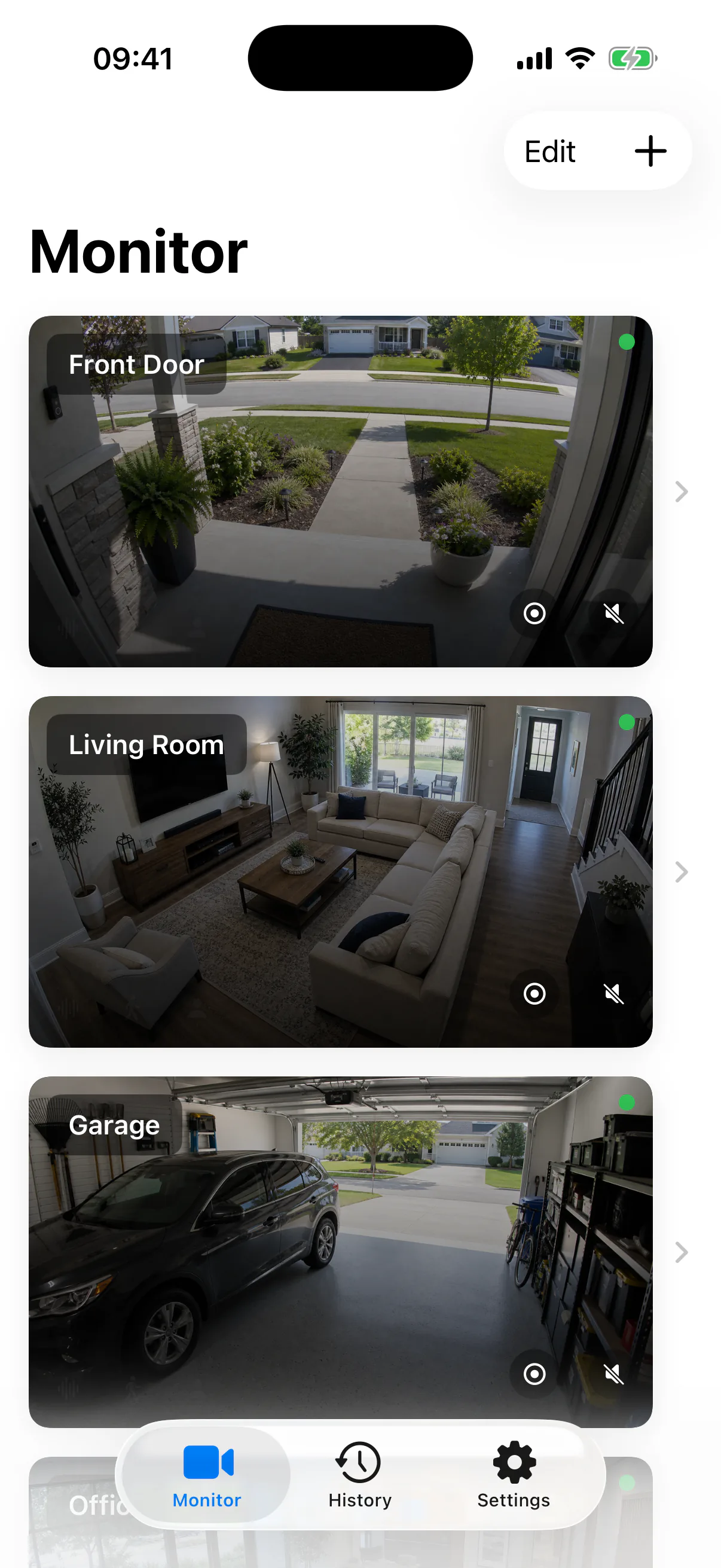
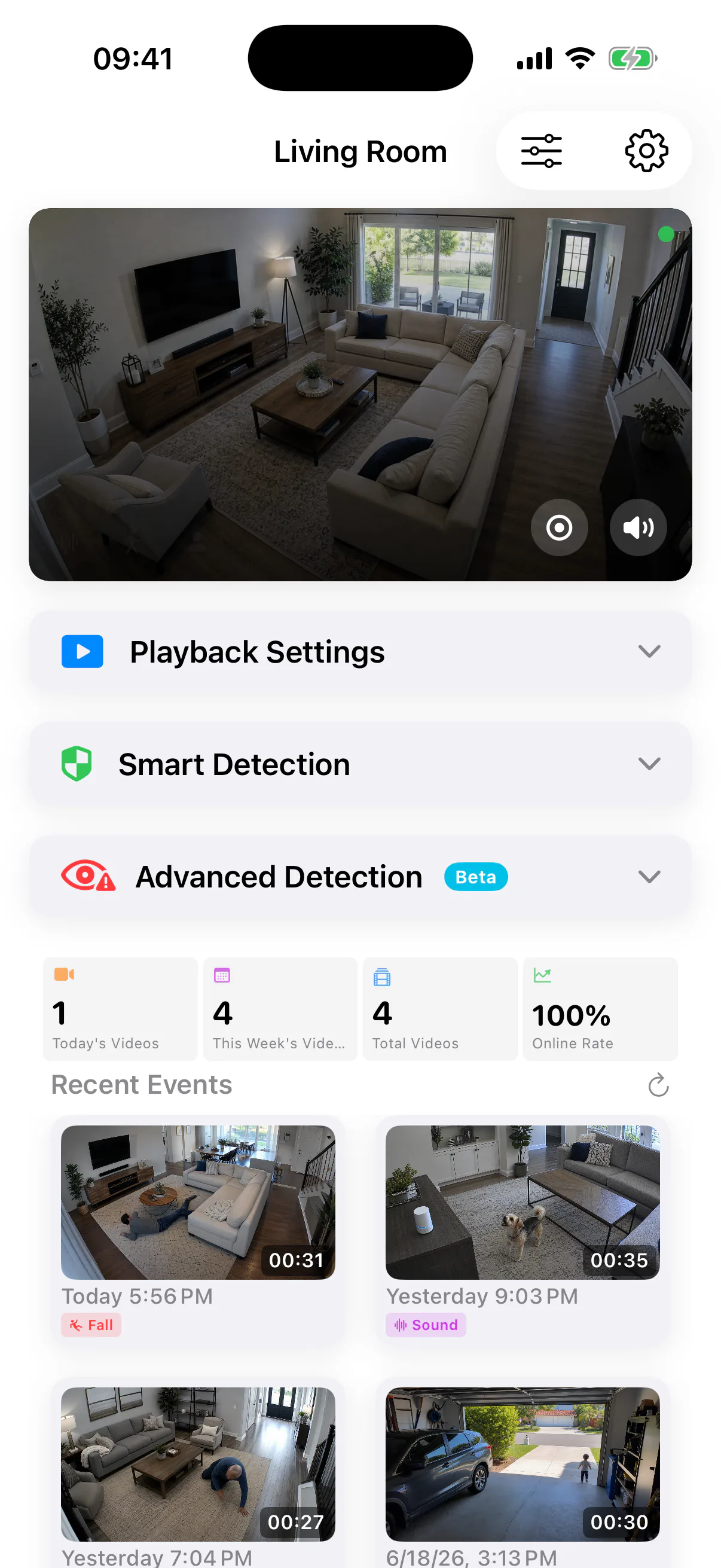
Multi-camera app previews
App screenshots show the monitor view and per-camera detail view used when building a grid.
Adding Cameras for the Grid
Add each camera individually — you can mix ONVIF auto-discovered cameras and manually entered RTSP URLs in the same grid.
-
1
Add your first camera. Tap the + button and select ONVIF Scan to auto-discover cameras on your network, or choose Manual Entry to enter an RTSP URL directly.
-
2
Repeat for your second, third, and fourth cameras. Each appears in your camera list. Give each a descriptive name — "Front Door", "Garage", "Backyard" — for easy identification in the grid and event alerts.
-
3
Tap the grid icon in the top toolbar to switch from single-camera view to multi-camera grid. All added cameras stream simultaneously in the grid.
-
4
Tap any grid cell to go full-screen on that camera. Tap the grid icon again or swipe down to return to the multi-camera view.
Grid Layout Options
Switch between layouts by tapping the layout selector icon in the grid toolbar. The 2×2 grid is the most common choice for security monitoring. The 1+2 layout is useful when one camera covers the most critical area and you want it larger while keeping two supplementary views visible.
Performance with Multiple Streams
Each stream is decoded in hardware via Apple VideoToolbox. On iPhone 12 and newer, 4 simultaneous 1080p H.265 streams decode smoothly at full frame rate without significant thermal throttling. On older or lower-end devices, using sub-streams is strongly recommended for grid view.
Recommended Sub-Stream URLs for Multi-Camera
Sub-streams are lower-resolution secondary streams — typically 640×480 or 720p — that dramatically reduce video decoding CPU load in grid view. Most cameras provide a separate RTSP path for the sub-stream; swap the URL in camera settings when using grid mode.
| Brand | Sub-Stream RTSP URL | Typical Resolution |
|---|---|---|
| Hikvision | rtsp://user:pass@IP:554/Streaming/Channels/102 | 640×480 or 720p |
| Reolink | rtsp://user:pass@IP:554/h264Preview_01_sub | 640×480 |
| Dahua | rtsp://user:pass@IP:554/cam/realmonitor?channel=1&subtype=1 | 720p or lower |
| TP-Link Tapo | rtsp://user:pass@IP:554/stream2 | 640×360 |
| Amcrest | rtsp://user:pass@IP:554/cam/realmonitor?channel=1&subtype=1 | 640×480 |
Sub-stream path naming varies by firmware version. Check your camera's web UI under Stream Settings if the URL above does not connect.
Organising Your Camera Layout
Long-press a camera in the list to enter reorder mode. Drag cameras into your preferred grid position order. The grid fills left-to-right, top-to-bottom based on your list order.
Give each camera a clear name — "Front Door", "Backyard", "Living Room" — so event notifications and the grid overlay tell you exactly which camera triggered an alert.
Tap any grid cell to expand that camera to full-screen. Tap the grid icon or swipe down to return to the multi-camera grid. Double-tap to toggle full-screen quickly.
Rotate your device to landscape orientation. The grid layout adapts automatically — wider cells for a better view of widescreen 16:9 camera feeds.
AI Detection in Grid Mode
AI detection runs independently on all cameras in the grid simultaneously. Each camera's on-device AI processing is isolated — a detection event on Camera 1 does not affect Camera 2's detection pipeline. SmartRTSP uses Apple's on-device processing to handle multiple inference streams without requiring a cloud connection.
-
✓
Independent detection settings per camera. Enable person detection on Camera 1, motion-only on Camera 2, and sound detection on Camera 3. Each camera is fully configurable.
-
✓
Unified event history. Detection events from all cameras in the grid appear in a single event log with camera name, event type, and timestamp. Tap any event to review the pre-buffer recording.
-
✓
Visual alert in grid view. When a detection event fires, the corresponding grid cell highlights briefly so you can immediately identify which camera triggered the alert while watching all feeds.
-
✓
Pre-buffer recording on every camera. Each camera captures 3 seconds before the detection trigger. Recordings include the moments leading up to the event — not just what happened after the alert fired.
Multi-Camera on Mac vs iPhone vs iPad
| Platform | Grid Behaviour | Best Use |
|---|---|---|
| iPhone | 2×2 grid optimised for vertical viewing; portrait and landscape modes | On-the-go monitoring, quick checks |
| iPad | Larger grid cells; split-screen friendly — run SmartRTSP alongside other apps | Dedicated monitoring station |
| Mac | Resizable window; larger grid displays; runs in a corner of a larger workspace | Desktop monitoring alongside other work |