SmartRTSP Pro records camera footage directly to your iPhone, iPad, or Mac. Recordings stay in local app storage or an available local export destination, without a required cloud upload.
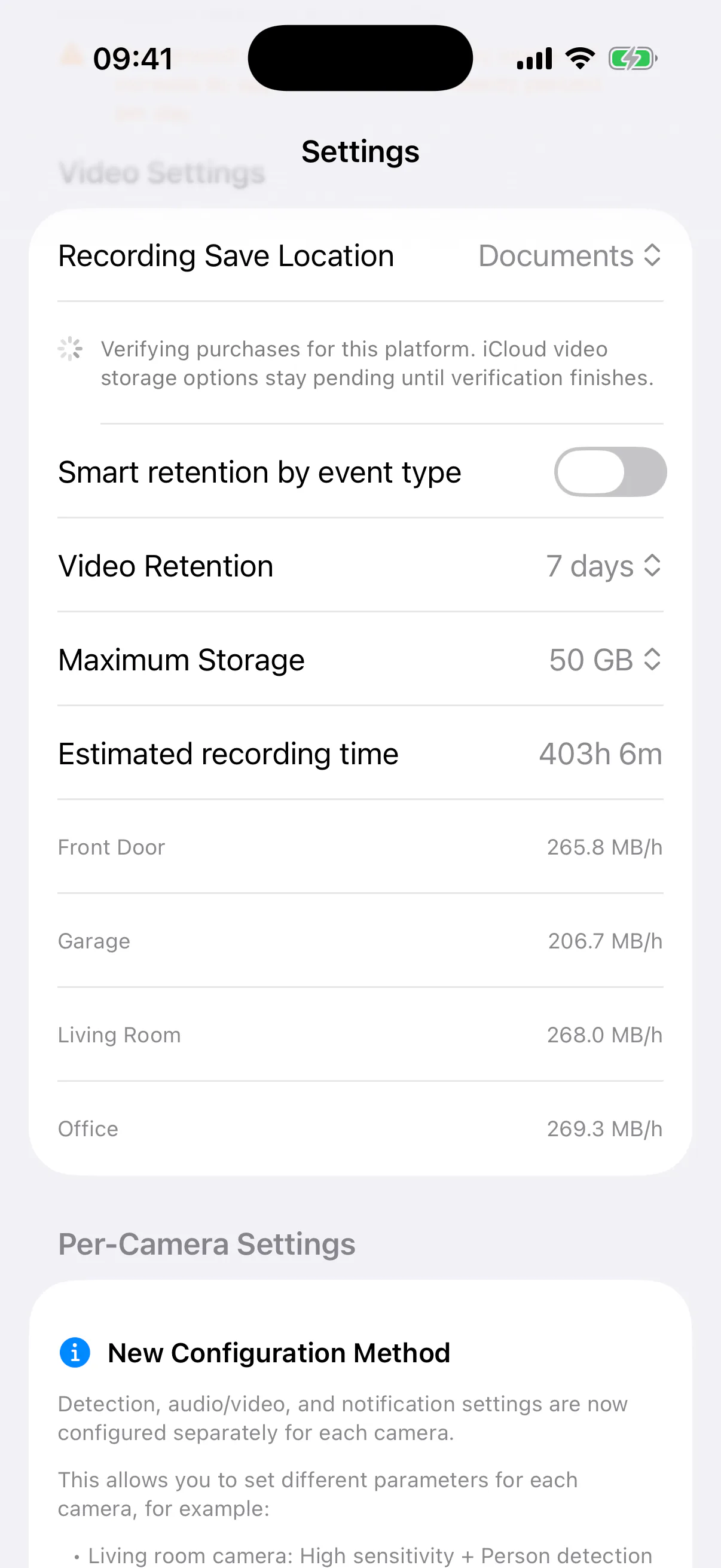
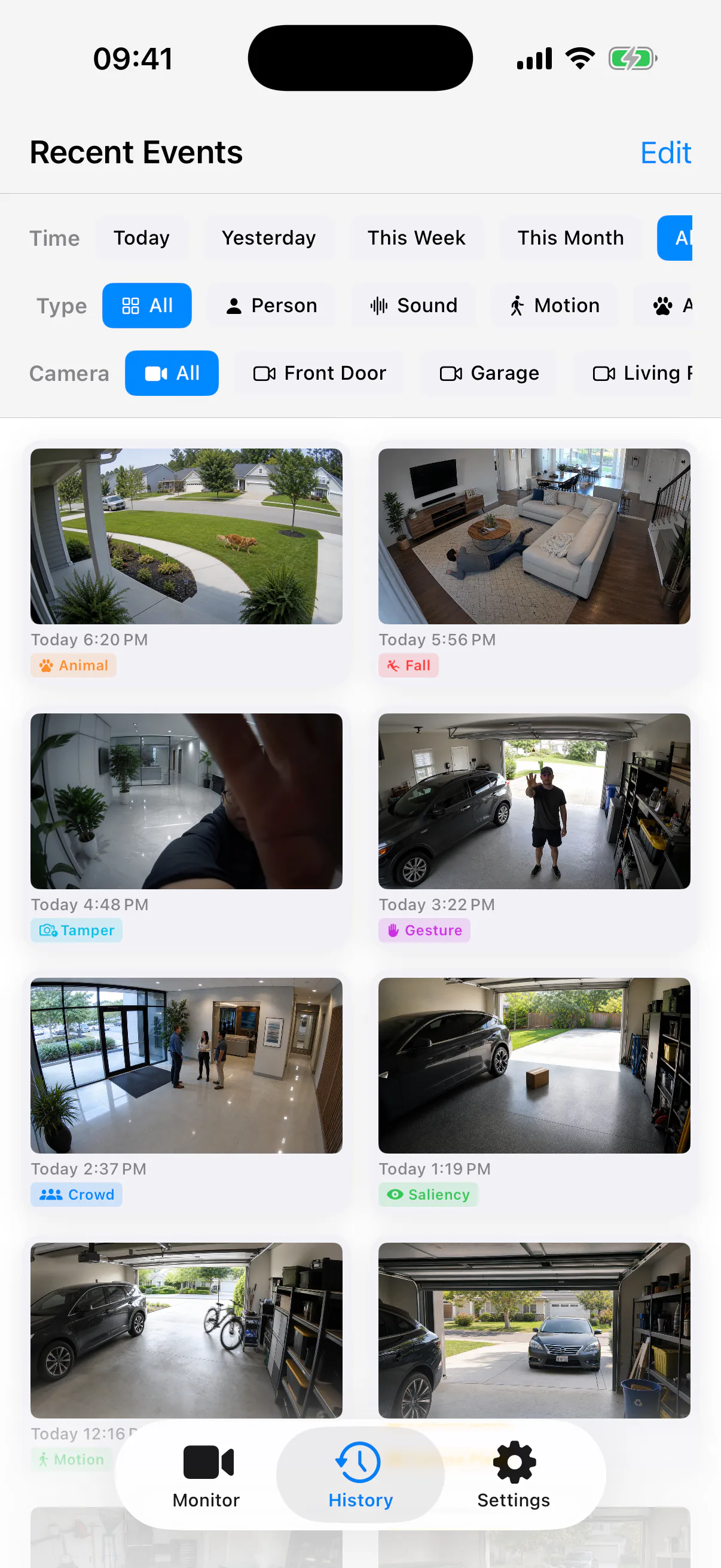
Recording and event history screens
The preview images localize with the page language and show where recordings and event clips fit into the app workflow.
Recording Modes
Manual Recording
Tap the record button while viewing a live camera feed. Recording continues until you tap again to stop. Ideal for capturing specific moments on demand.
Motion-Triggered
Automatically starts recording when AI detects motion or a person. Saves storage by only capturing relevant events. Recordings are labelled with the trigger type.
Continuous Recording
Records all the time while monitoring is active. Uses significant storage — best paired with H.265 streams and a high-capacity device or NAS for longer retention periods.
How to Start Recording
Open a live camera view
Tap any camera in your camera list to open the live view. Ensure the stream is connected and playing before starting a recording.
Tap the record button (circle icon)
The record button is displayed in the camera controls overlay. Tap it once to begin recording. A red recording indicator will appear on screen.
Tap again to stop
Tap the record button a second time to stop recording. The file is immediately saved to your device.
Access footage in Photos or Files
Recordings are saved to your device automatically. See the section below for exact save locations on iPhone/iPad and Mac.
Where Are Recordings Saved?
Recordings are saved to your Camera Roll in the Photos app, organised into a SmartRTSP album. You can also find them in Files app → On My iPhone → SmartRTSP.
Recordings are saved to your Documents folder → SmartRTSP Recordings. Files are named with the camera name and timestamp for easy identification.
Storage Management Tips
-
▸
Use H.265 streams. H.265/HEVC-encoded footage uses approximately 50% less storage than equivalent H.264 footage at the same quality. If your camera supports H.265, enabling it is the single most effective way to reduce storage usage.
-
▸
Use sub-stream for long recordings. Recording a sub-stream (e.g. 720p instead of 4K) drastically cuts file sizes while still capturing enough detail for most security review purposes.
-
▸
Manage recordings in Files app. Periodically review and delete old recordings in the Files app (iPhone/iPad) or Finder (Mac). SmartRTSP does not auto-delete old footage — storage management is in your hands.
-
▸
Consider NAS for extended retention. For longer retention periods (days or weeks of footage), a NAS (network-attached storage) device connected to your local network offers far more capacity than device storage alone.
Motion-Triggered Recording Setup
Motion-triggered recording combines AI detection with automatic recording so you never miss an event — and you never record hours of nothing.
Enable AI motion detection
Go to camera settings → AI Detection → enable Motion Detection (and optionally Person Detection for higher accuracy triggers).
Enable "Record on Detection"
In the Recording settings, enable the "Record on Detection" toggle. Recording will now start automatically whenever a detection event fires.
Pre-buffer recording (3 seconds)
SmartRTSP automatically captures 3 seconds before the detection event fires, so you never miss the moment that triggered the alert. Each event recording starts at 5 seconds, extends in 5-second increments if activity continues, and caps at 15 seconds maximum. A 10-second cooldown follows before the next recording can begin.
Video Format and Playback
Format: Recordings are saved as MP4 or MOV files, depending on the source stream codec.
Playback: Files are playable in the Photos app, Files app, VLC, and QuickTime Player on Mac.
H.265 compatibility: H.265 files require iOS 11 or later, or macOS High Sierra (10.13) or later for native hardware playback. Older devices will fall back to software decode.
Sharing: Recordings can be shared directly from the Photos app or Files app via AirDrop, email, or any share sheet destination.
Frequently Asked Questions
How much storage does recording use?
Can I record multiple cameras at once?
Is there a maximum recording length?
Can I access recordings remotely?
Record footage locally with SmartRTSP Pro
Save recordings on your device without a required cloud-storage plan. Recording and history are SmartRTSP Pro features.