SmartRTSP includes on-device AI detection for person detection, motion detection, face recognition, and sound classification — all running locally on your iPhone, iPad, or Mac. No cloud upload, no subscription required. This guide explains how to enable and configure each detection type.
AI detection screens
App Store preview images show the detection setup, event history, and notification controls users see in the app.
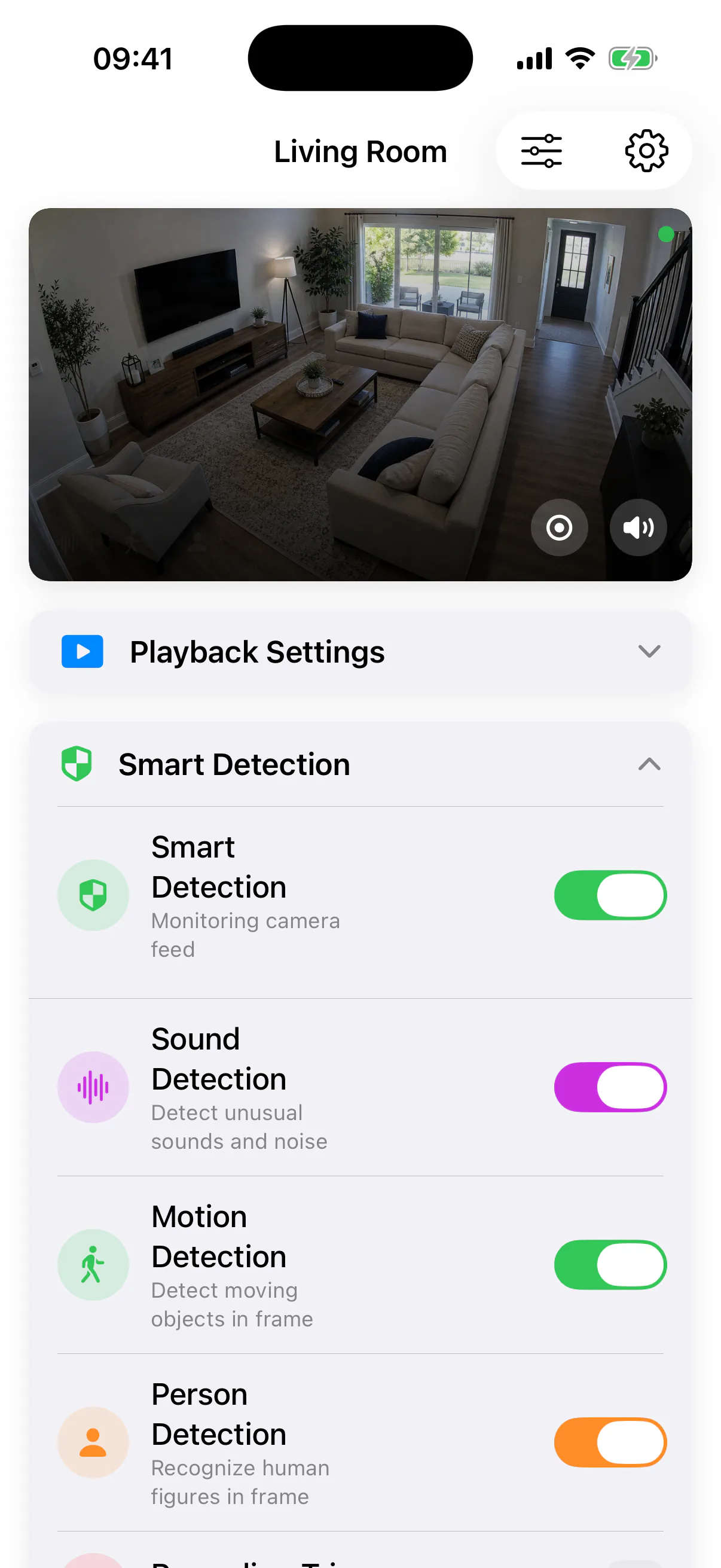
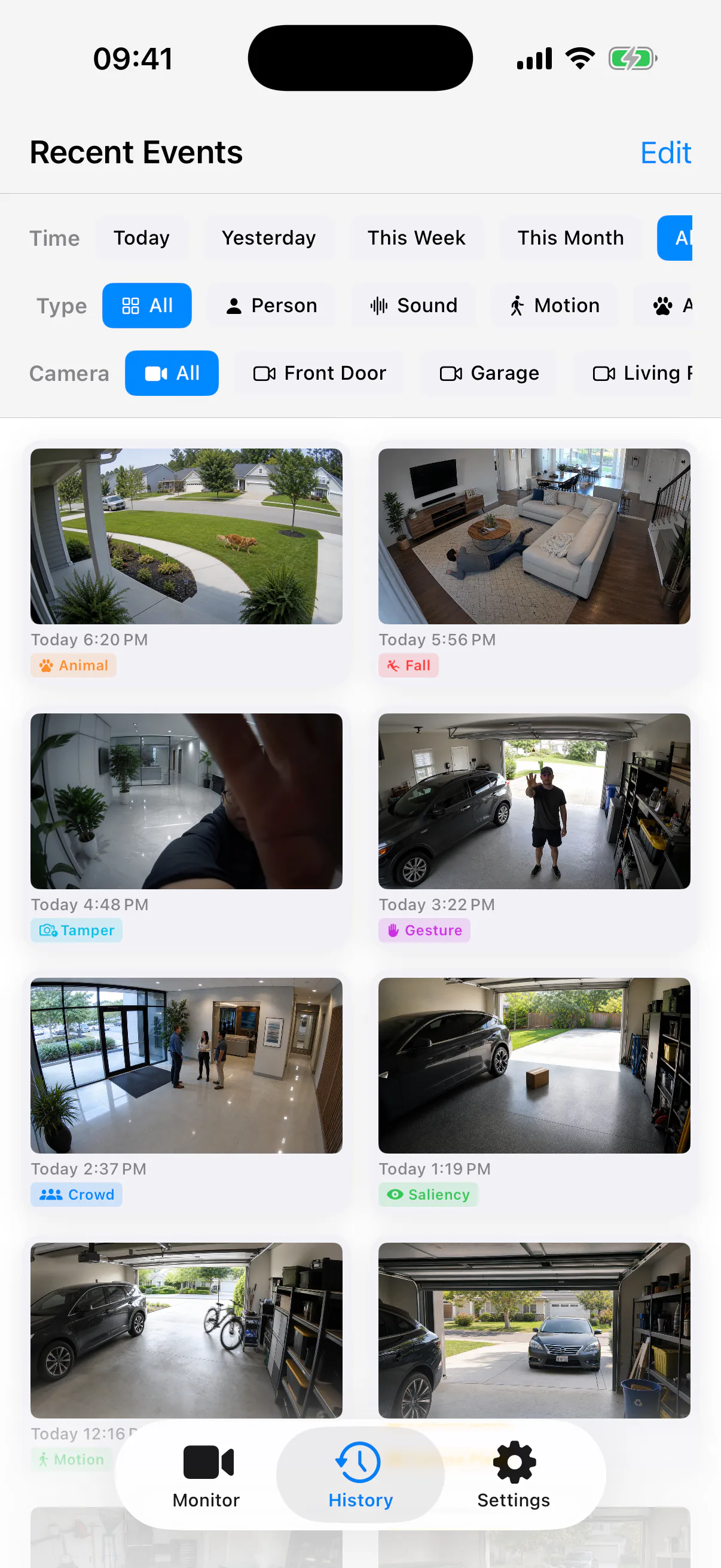
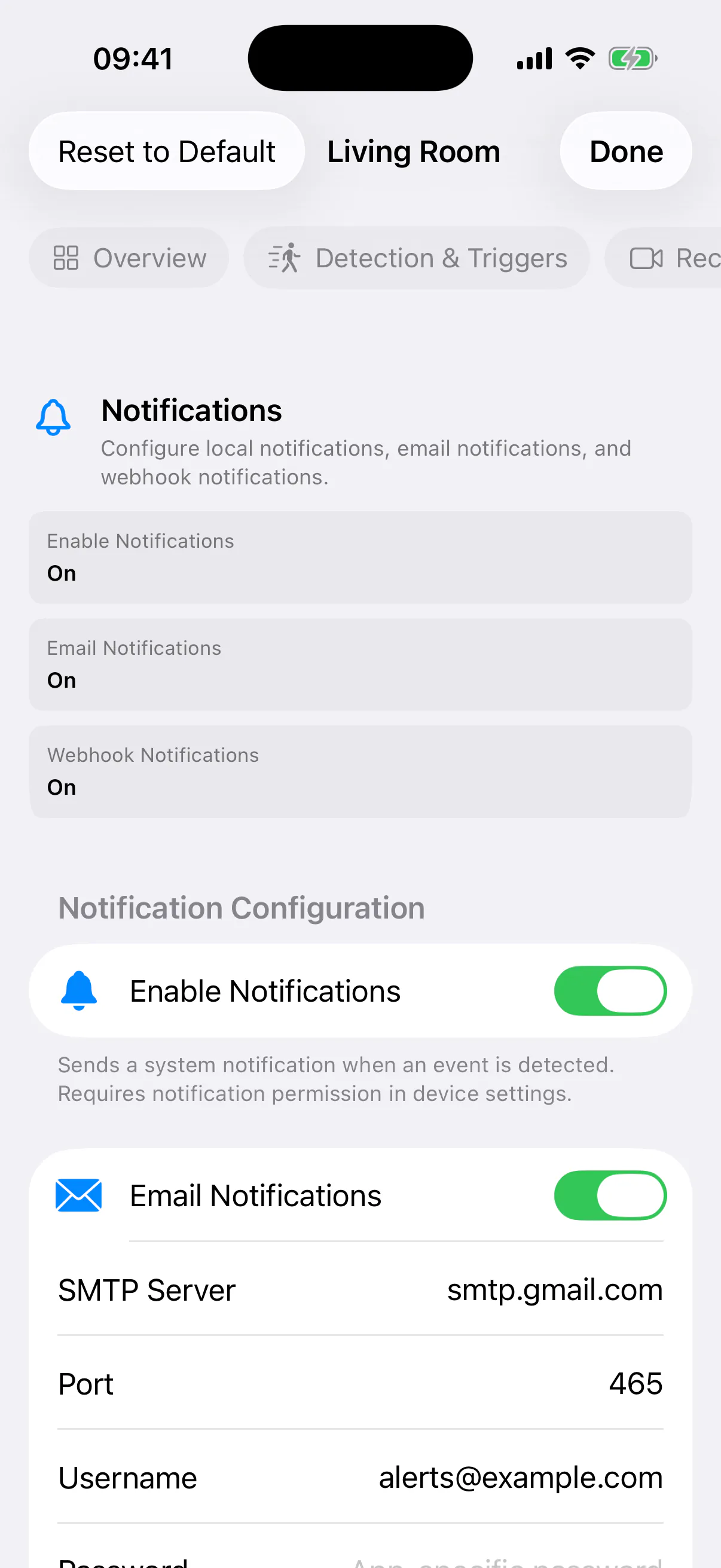
SmartRTSP AI Detection Types
Person Detection
Identifies when a human is present in frame. Uses a cascade architecture — motion is detected first as a lightweight pre-pass, then person classification runs only when motion is confirmed. Reduces false alerts and saves CPU.
Motion Detection
Lightweight first-pass detection that activates when pixels change significantly between frames. Fast and efficient — serves as the trigger gate for person detection. Configurable sensitivity from low to high.
Object Detection (80 Categories)
On-device object detection covering 80 categories including people, pets, vehicles, packages, furniture, and more. Runs alongside person detection when motion is confirmed — all using hardware acceleration, no cloud.
Face Detection
Activates only after a person is already detected (Stage 3 of the cascade). On-device face detection runs entirely on your device — no face data is uploaded or stored externally.
Sound Classification
Uses Apple's on-device sound analysis to classify audio from your camera stream. Detects doorbells, alarms, glass breaking, baby crying, dog barking, smoke detectors, and more — all processed locally in real time. No audio is uploaded.
The Detection Cascade
SmartRTSP uses a layered cascade: each AI stage only activates when the previous one detects something. This avoids running expensive detectors on every frame, saving 60–80% CPU versus running all detectors simultaneously.
| Stage | Detector | Latency | Image Scale | Triggers when… |
|---|---|---|---|---|
| 1 | Motion Detection | ~100ms | 15% (97.75% pixel reduction) | Always active |
| 2 | Person + Object Detection | ~600ms | 30% of original | Motion detected |
| 3 | Face Detection | ~800ms | On-device processing | Person detected |
The cascade delivers 60–80% CPU savings compared to running person detection and face detection on every frame. On scenes with occasional activity, the AI detectors run only on a small fraction of total frames.
Performance Modes
Performance modes control how often frames are sampled for analysis. Choose based on how quickly you need to detect events versus how much battery you want to preserve.
Analyzes one frame every 2 seconds. Best for long-duration or overnight monitoring where battery life matters most.
Analyzes one frame per second. The recommended mode for home security, pet monitoring, and everyday use — responsive without excessive battery drain.
Analyzes two frames per second for fastest detection response. Best when plugged into power or for high-security scenarios requiring immediate alerts.
How to Enable AI Detection
Open SmartRTSP and select a camera
Tap on the camera feed you want to configure AI detection for. You can configure detection independently for each camera.
Tap the settings gear icon
In the camera detail view, tap the gear or settings icon to open the camera configuration panel.
Navigate to AI Detection
Scroll to the AI Detection section. You will see toggles for Motion Detection, Person Detection, Face Recognition, and Sound Classification.
Enable the desired detection types
Toggle on the detection types you want. Motion Detection should be enabled if you intend to use Person Detection, as person detection relies on motion as a pre-pass trigger.
Set sensitivity and save
Choose Low, Medium, or High sensitivity for each detection type. Tap Save. Notifications will now fire when a detection event occurs.
AI Detection Sensitivity Guide
Low Sensitivity — Busy areas
Only triggers on clear, close-up, high-confidence events. Best for busy environments (streets, public areas) where you only want alerts for obvious, nearby events. Minimises false positives.
Medium Sensitivity — Recommended for most homes
Balanced setting. Detects people at typical indoor/outdoor distances reliably without flooding you with notifications. The recommended starting point for home security use cases.
High Sensitivity — Large outdoor areas
Triggers on distant or partial detection events. Best for wide-angle cameras covering driveways, large yards, or parking areas where subjects may be further from the camera. Expect more notifications.
Sound Detection Setup
Sound classification runs independently from video-based detection. Your camera's audio stream is analysed entirely on-device using Apple's on-device sound analysis framework — no audio is ever uploaded.
Enable Sound Monitoring in AI Detection settings
Toggle on Sound Classification in the camera settings panel.
Select the sound categories you want alerts for
Choose from: Doorbell, Alarm, Glass Breaking, Baby Crying, Dog Barking, Smoke Detector, and many more sound categories processed entirely on-device.
Set notification preferences
Choose whether to receive a push notification, play a sound alert, or both. You can also set per-category notification rules.
Tips for Best AI Detection Performance
-
▸
Camera placement. Mount cameras at 2.5–3 m height and angled slightly downward. Avoid pointing directly into bright sunlight or strong backlight — this can confuse motion detection.
-
▸
Night-time performance. IR night vision cameras work well with SmartRTSP's AI detection. The on-device models are trained on both colour and grayscale frames. Ensure IR illumination reaches the area you want to monitor.
-
▸
Reduce false alerts. Use motion zones if your camera supports them to exclude foliage, roads, or other areas prone to spurious movement. Lower sensitivity for high-traffic zones.
-
▸
Use sub-stream for detection. Running AI detection on a sub-stream (typically 640×360 or 720p) reduces CPU and battery usage while maintaining detection accuracy for typical monitoring distances.
Privacy: All AI Processing Runs On-Device
Every AI detection model in SmartRTSP — person detection, motion detection, face recognition, and sound classification — runs entirely on your iPhone, iPad, or Mac. No video frames, audio clips, or detection results are ever uploaded to any server. No account is required. Your footage and your home remain completely private.
Frequently Asked Questions
Does AI detection work in the background?
Does AI detection drain battery?
Can I get notifications when I'm away from home?
Does face recognition require a subscription?
Try AI detection — free
On-device person detection, motion alerts, 80-category object detection, face recognition, and sound classification. No cloud. No subscription.