 SmartRTSP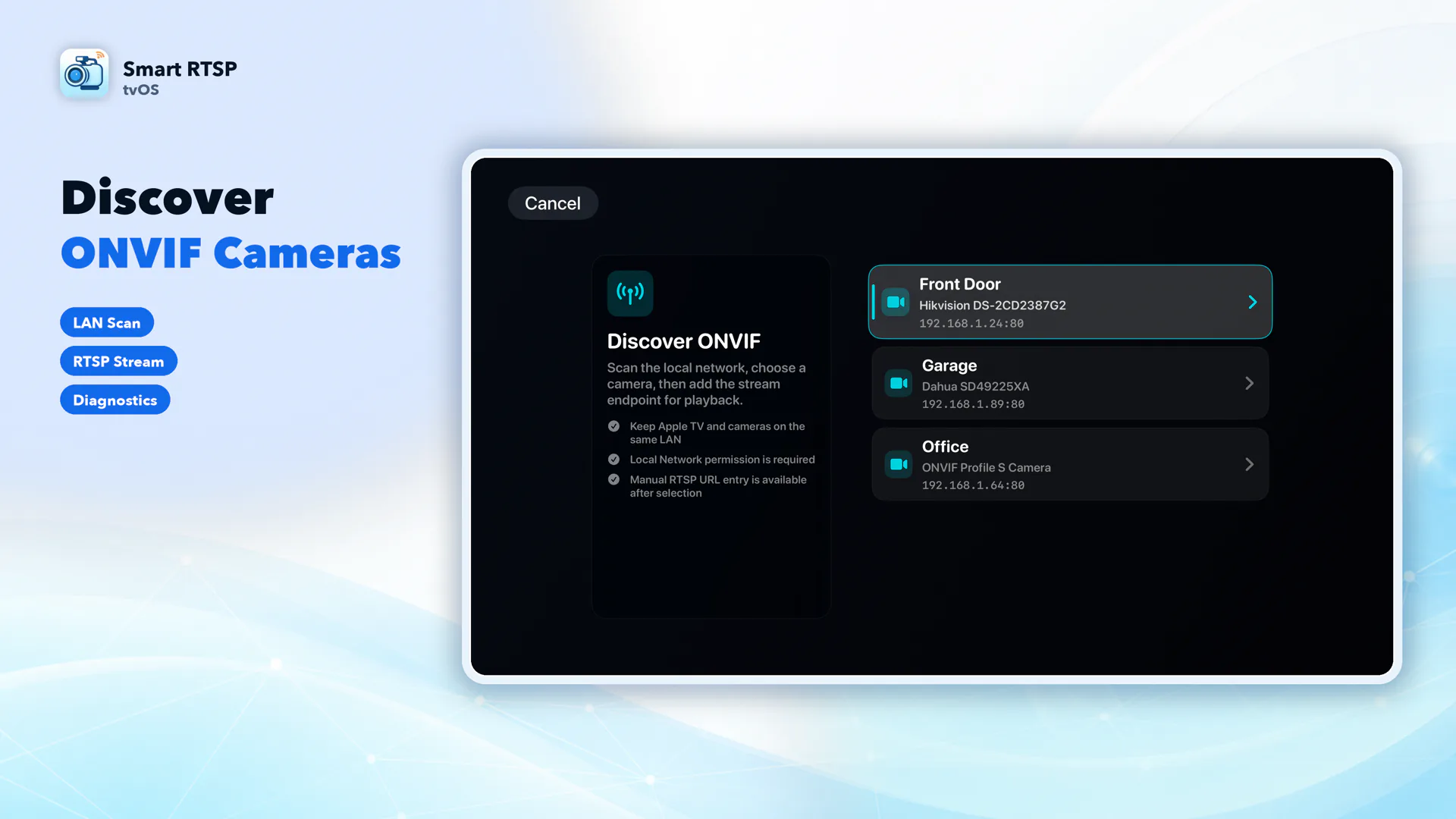
Choose your camera brand
TP-Link Tapo
Start with a Tapo model that supports local RTSP/ONVIF. Most wired models do, but battery cameras and doorbells have model-specific exceptions.
Open the guideTP-Link VIGI
VIGI network cameras and recorders offer local streaming on supported models. Choose the camera IP or the recorder's LAN IP according to your wiring.
Open the guideReolink
Many powered Reolink cameras support direct RTSP/ONVIF. Some models need a Reolink Home Hub or NVR; check model and hardware version.
Open the guideHikvision
Use a Hikvision IP camera or recorder with enabled RTSP or ONVIF integration and permission to view the desired channel.
Open the guideDahua
Supported Dahua IP cameras and recorders can supply local RTSP streams. ONVIF access depends on the device's enabled service and user permissions.
Open the guideAmcrest
Choose an Amcrest IP camera or recorder whose documentation explicitly supports RTSP. Smart-home, doorbell and battery models can differ.
Open the guideUbiquiti UniFi Protect
For UniFi Protect, obtain a stream from the Protect console. Do not assume that the camera's own IP exposes the same URL.
Open the guideAxis
Axis network cameras commonly provide RTSP and ONVIF. Confirm the model's firmware, enabled services and account permissions.
Open the guideFoscam
Use a Foscam model with a documented local RTSP stream. Stream paths and ports differ between product generations.
Open the guideEZVIZ
Only EZVIZ models with an available local RTSP or ONVIF service can use this workflow. Cloud live view alone is insufficient.
Open the guideImou
Imou compatibility depends on the exact model exposing RTSP or ONVIF. Confirm this in the model's official specification.
Open the guideWyze
Check Wyze's current model and firmware support. Cam v3 and Cam Pan v3 received official RTSP support in 2026; support is not identical across the lineup.
Open the guideeufy
Some eufy cameras expose RTSP through a NAS setting. Check the exact model; HomeBase or cloud viewing does not automatically provide an RTSP stream.
Open the guideInstall SmartRTSP on Apple TV
Use an Apple TV that can install apps. Open its App Store, search for Smart RTSP, and install the dedicated Apple TV app. The Apple TV app on a smart television is not the tvOS App Store.
Connect Apple TV and the camera, NVR or supported hub to the same reachable local network. Allow Local Network access when requested; guest Wi-Fi isolation can block discovery and video.
Complete the manufacturer's setup first and note the device's local IP, streaming port and camera account. Start with a lower-bitrate H.264 stream when available.
Add the camera in SmartRTSP
In SmartRTSP, choose Add a Camera. For an ONVIF-capable device, choose Discover ONVIF, select the device and enter its device account. Resolve the stream, then save it.
For a known stream address, choose Manual RTSP. Enter a name, the full rtsp:// or rtsps:// URL, and the device username and password. Test Connection, then Save.
Open the saved camera to watch. If discovery finds nothing, try manual ONVIF or the manufacturer's RTSP URL; a working RTSP stream does not require ONVIF discovery.
Use a brand template
If your installed version offers brand templates, choose the brand and model, enter its IP address, and apply the template. Check the resulting URL and credentials, then test the connection. A template is a starting point, not a compatibility guarantee.
Watch and control
Siri Remote
Select a camera to open it. In the viewer, reveal the controls with the select or directional buttons. Play/Pause toggles audio; Back returns. In a grid, audio comes from the selected camera.
Multiple cameras
Choose a supported grid layout in your installed version. The trial permits up to 2 saved cameras; more require Pro. Use substreams for a lighter load. Layout capacity does not guarantee simultaneous decoding at every resolution.
PTZ and recording
PTZ requires an ONVIF-added camera with supported controls; a manual RTSP URL alone does not provide PTZ. Recording, history and other advanced local features follow the 48-hour trial phase or Pro access.
Bring cameras from iPhone
In versions with local pairing, choose Import from iPhone on Apple TV. On iPhone, open SmartRTSP Settings → Send to Apple TV and follow the pairing code. This is a local import, not iCloud synchronization, and is subject to feature access and camera limits.
Free viewing and Pro
Free to download. The latest Apple TV version provides a continuous 7-day trial for up to 2 saved cameras: advanced local features for the first 48 hours, then basic viewing for the remaining 5 days. Continued viewing after day 7 requires Pro.
The trial starts with the first actual live video or audio, or the first use of an advanced feature such as detection. Opening the app or its settings alone does not start it. Once started, closing the app, going offline or sleeping the device does not pause the clock. This app trial is not a store subscription trial. Check the trial status in your installed version; Apple TV does not offer iCloud synchronization.
If the picture does not appear
No device found
Check Local Network permission, subnet access and guest-network isolation. Enable ONVIF if the model supports it. Otherwise use a manual RTSP address.
Login or connection failed
Use the device account, not a vendor cloud account unless its documentation says otherwise. Check IP, port, full path and NVR channel. Test the same URL on another device on the same LAN.
Black picture or stuttering
Try the substream, H.264 and a lower bitrate or frame rate. Check Wi-Fi quality, concurrent stream limits and whether the battery camera is awake.
No sound or PTZ
Check that the stream includes supported audio and unmute the selected camera. PTZ needs the device's ONVIF service and advertised capabilities; video alone does not prove audio or PTZ support.
Common questions
Does every model from this brand work?
No. The exact model and firmware must expose a supported local stream. Some devices need an NVR or hub; cloud-only viewing cannot be turned into RTSP by entering a cloud login.
Must I expose camera ports to the internet?
No port forwarding is needed for this same-network setup. Keep the camera, recorder and Apple TV locally reachable. Remote viewing is a separate setup.
Can I leave it recording after switching apps?
Do not rely on Apple TV as an unattended background NVR. Keep SmartRTSP in the foreground for this viewing workflow; use your dedicated recorder for uninterrupted recording.