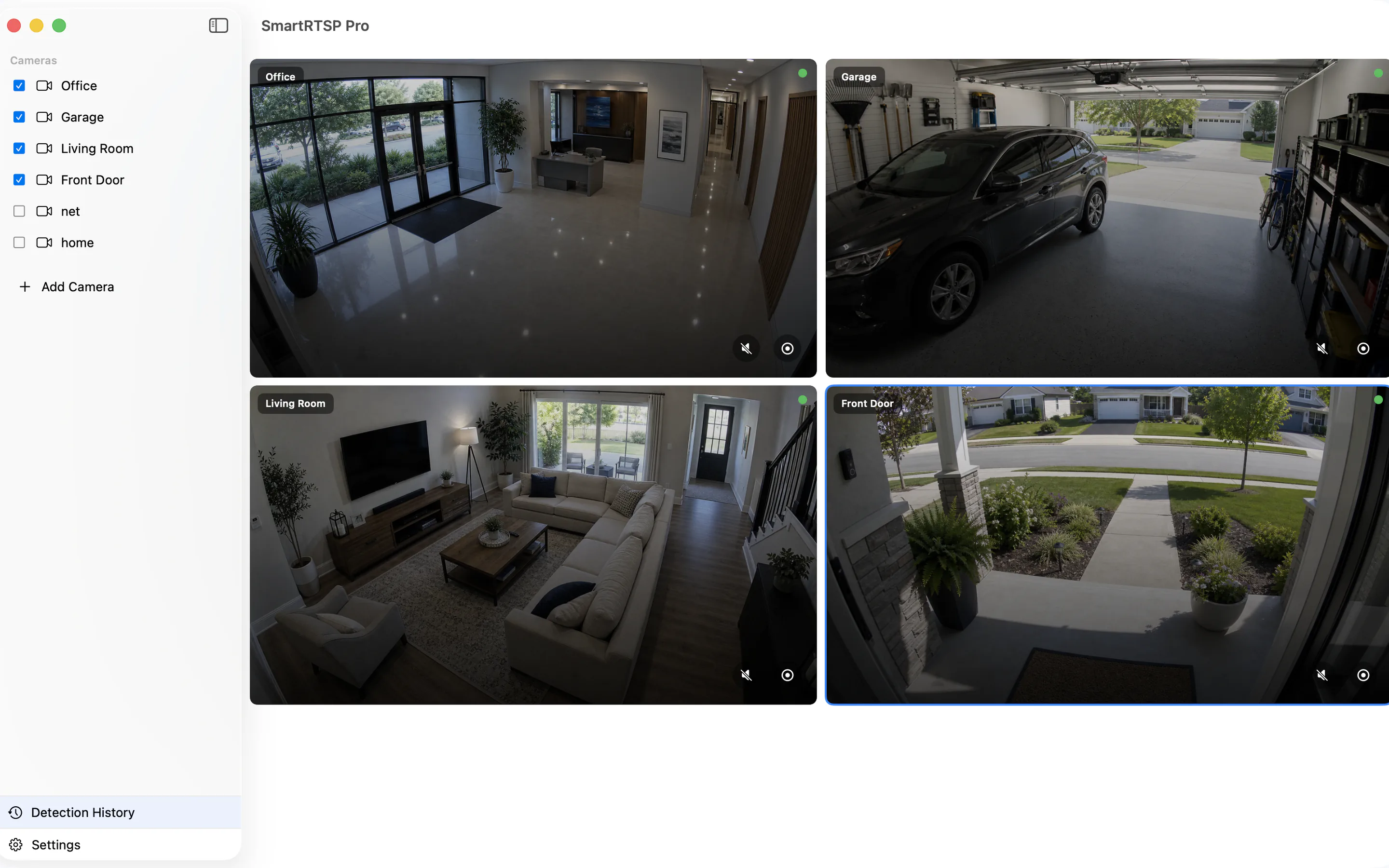
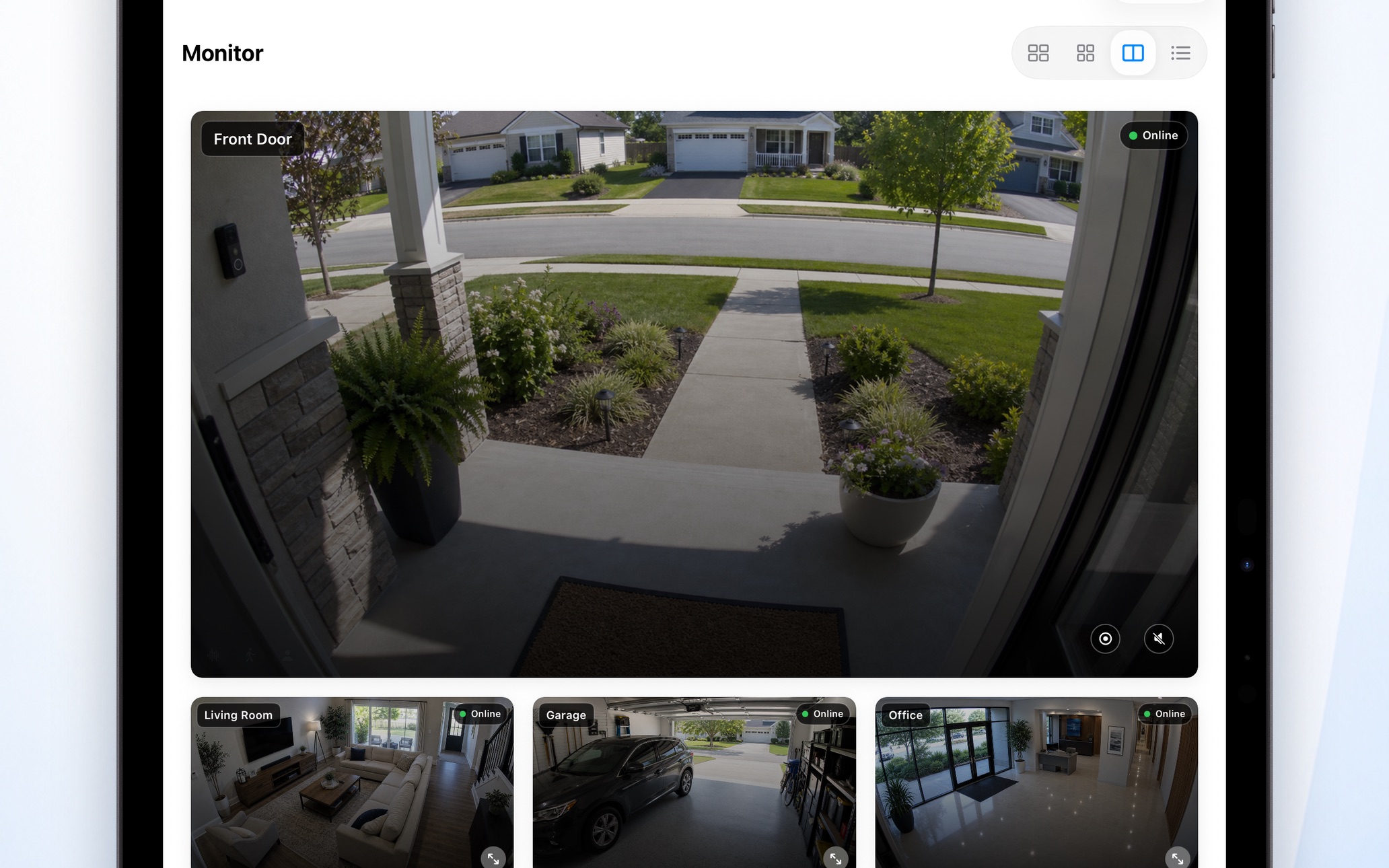
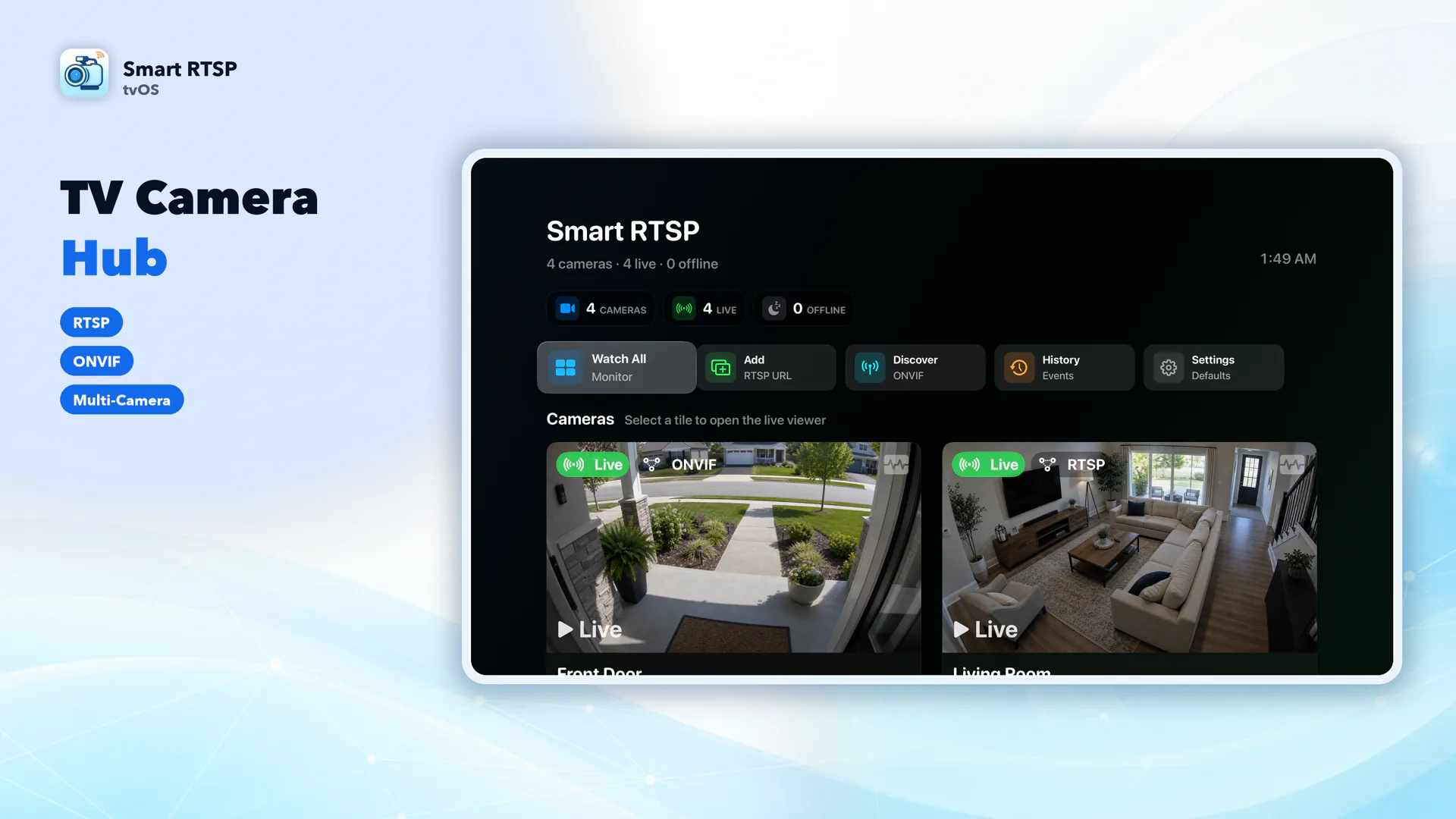
SmartRTSP is an RTSP viewer and player for compatible IP cameras and recorder streams. Add a documented camera address or use supported ONVIF discovery, then check the live picture on your own device.
Keep an eye on your home, shop or office with live camera views, multi-camera grids and local recording. Available features and Pro requirements vary by platform.
Test live video, audio, PTZ controls, reconnection and recording separately. A camera brand alone does not establish compatibility with every model. Keep your existing recorder if you need uninterrupted recording and storage.
SmartRTSP is free to download. Apple and Android versions include 2 continuous hours of free live viewing, starting when the first video frame appears. Closing the app does not pause the timer. This is not a full-feature Pro trial or a store subscription trial. Once this free period ends, continued live viewing requires Pro. Pro features require purchase. Check each platform store and the app for available plans, prices and Windows viewing terms.
Advanced AI features designed for home owners, small businesses, and security professionals.
AI Detection
Cascade AI detects people, motion, faces, sounds, fire/smoke, vehicles, license plates, animals, falls, and more. Saves CPU by only triggering deeper analysis when needed — fewer false alarms, more accuracy.
Monitor up to 8 cameras simultaneously in an auto-arranged grid. Hardware-accelerated H.264/HEVC decoding via VideoToolbox for smooth, low-latency playback.
H.264HEVCONVIFHLS
Smart Recording
Automatically records when events are detected. Intelligent storage management with configurable retention up to 90 days and auto-cleanup at 50 GB.
Auto Record90-Day History
Audio Intelligence
Deep-learning sound classification — detect doorbells, alarms, glass breaking, and more. AI-powered voice enhancement delivers crystal-clear audio from any camera.
Sound DetectionVoice Enhancement
Smart Notifications
Multi-channel alerts: local push notifications, email via SMTP, and webhooks for Slack, Discord, Microsoft Teams, Lark/Feishu, and custom endpoints — all triggered the moment an event is detected.
EmailSlackDiscordTeamsLarkWebhook
Privacy-First
Local by default · Camera processing on your device · Remote viewing is optional · Relay services only when enabled · Technical error reports · No images, videos, or personal names
Local-FirstNo Tracking
PTZ Control
Full ONVIF PTZ control — pan, tilt, zoom, and preset positions. Adjust camera imaging settings like brightness, contrast, and saturation remotely.
Pan/Tilt/ZoomPresetsImaging
Danger Zone Monitoring
Define custom danger zones and get instant alerts when people or children enter restricted areas. Detect unattended objects, camera tampering, and scene changes.
Zone AlertTamperChild Safety
Available now
Apple Home Support — macOS
Use SmartRTSP on Mac as a simple path from RTSP and ONVIF cameras to Apple Home. Add Hikvision, Reolink, Dahua, Wyze, and more to SmartRTSP, then continue the Apple Home setup on your Mac.
SmartRTSP connects to any RTSP or ONVIF-compatible IP camera — including all major consumer and professional brands. No bridge hardware, no cloud subscription required.
Wyze
RTSP firmware
Reolink
ONVIF + RTSP
Hikvision
ONVIF
Amcrest
ONVIF + RTSP
Dahua
ONVIF
Eufy
RTSP (select models)
Foscam
ONVIF + RTSP
Annke
ONVIF + RTSP
Lorex
ONVIF + RTSP
TP-Link Tapo
ONVIF + RTSP
Axis
ONVIF + RTSP
Bosch
ONVIF + RTSP
Xiaomi
RTSP (custom firmware)
Any ONVIF / RTSP
Universal compatibility
RTSP Setup Guide
Common stream URLs for popular camera brands. Replace user, pass and IP with your camera's credentials and IP address.
Wyze
rtsp://user:pass@IP:322/stream0
▸Only select Wyze firmware versions support RTSP — download the RTSP firmware from wyze.com for compatible models
▸In the Wyze app, open the camera detail page → Settings → Advanced Settings → RTSP Settings → Enable
▸Use SmartRTSP's built-in ONVIF scanner to auto-discover cameras on your local network
▸Supports H.264 and H.265/HEVC streams — works with any standard RTSP-compatible device
FAQ
Frequently askedquestions
What cameras are compatible with SmartRTSP?
SmartRTSP works with any IP security camera that supports the RTSP (Real Time Streaming Protocol) or ONVIF standard. This includes all major brands: Hikvision, Reolink, Wyze (with RTSP firmware enabled), Dahua, Amcrest, Eufy (select indoor models), Foscam, Annke, Lorex, TP-Link Tapo, Axis, and Bosch. For consumer brands like Wyze that don't enable RTSP by default, SmartRTSP provides brand-specific setup guides. If your camera supports ONVIF, SmartRTSP can auto-discover it on your local network with one tap — no manual IP entry required. Any camera that outputs a standard RTSP stream will work, regardless of brand. No bridge hardware, no hub, and no cloud subscription is required — SmartRTSP connects directly to your cameras over your local Wi-Fi or Ethernet network.
Does SmartRTSP send my video to the cloud?
Local viewing does not require a SmartRTSP account. Camera configurations, credentials, recordings, snapshots, and event history are stored on your device or in a location you choose. Supported AI processing runs on your device. Camera, microphone, and local-network access are used for the features you enable. If you enable remote viewing, camera video is sent over the internet to your viewing device and may pass through a relay server that forwards the video stream. If remote viewing is disabled, SmartRTSP does not contact remote-viewing or relay services. This does not disable the separate error reports or other services described below. Android and Windows may send technical reports when crashes or exceptions occur to help diagnose errors. Reports contain error information such as error types, code stack traces, and app or system versions. They do not collect images, videos, recordings, camera names, user names, camera addresses, or login credentials. Error reporting may use the internet even when remote viewing is disabled.
Does SmartRTSP work without an internet connection?
Yes. Live viewing, camera discovery, AI detection, and recording on your local network can work without internet. Optional remote viewing needs an internet connection, as do optional iCloud sync and app updates.
Is SmartRTSP free?
SmartRTSP is free to download. Apple and Android versions include 2 continuous hours of free live viewing, starting when the first video frame appears. Closing the app does not pause the timer. This is not a full-feature Pro trial or a store subscription trial. Once this free period ends, continued live viewing requires Pro. Pro features require purchase. Check each platform store and the app for available plans, prices and Windows viewing terms.
How do I connect my Hikvision or Reolink camera?
The easiest method is SmartRTSP's built-in ONVIF auto-discovery — tap "Scan" and the app finds all compatible cameras on your local network automatically. For manual RTSP URL setup: Hikvision uses rtsp://user:pass@IP:554/Streaming/Channels/101 for the main stream (use /102 for sub-stream). Reolink uses rtsp://user:pass@IP:554/h264Preview_01_main (replace "main" with "sub" for lower resolution). Dahua and Amcrest share the format rtsp://user:pass@IP/cam/realmonitor?channel=1&subtype=0. TP-Link Tapo uses rtsp://user:pass@IP:554/stream1. In all cases, replace user, pass, and IP with your camera's actual credentials and local IP address. Full brand-specific guides are in the Cameras section above.
Can I monitor multiple cameras at the same time?
Keep an eye on your home, shop or office with live camera views, multi-camera grids and local recording. Available features and Pro requirements vary by platform. Test live video, audio, PTZ controls, reconnection and recording separately. A camera brand alone does not establish compatibility with every model. Keep your existing recorder if you need uninterrupted recording and storage.
What AI detection features does SmartRTSP include?
Local viewing does not require a SmartRTSP account. Camera configurations, credentials, recordings, snapshots, and event history are stored on your device or in a location you choose. Supported AI processing runs on your device. Camera, microphone, and local-network access are used for the features you enable. Keep an eye on your home, shop or office with live camera views, multi-camera grids and local recording. Available features and Pro requirements vary by platform.
Guides & Resources
Everything you need to get started
Step-by-step guides, troubleshooting help, and comparisons — all free.