 SmartRTSP
Create your first test stream
- Open Settings in SmartRTSP on Mac, iPhone or iPad. Find Test Stream Simulator at the bottom of Settings or as the last sidebar category, turn it on, then open its page. The feature is off by default.
- Choose This device only for a local test, or Local network to let another device connect. Choose None, Basic or Digest authentication before starting.
- Select Start simulation. Check the server address, time remaining and connected viewers. The app chooses an available port; use the port it displays.
- Try Standard test stream first. Open Preview to check video, or use Copy address and paste the URL into an RTSP player. For an external player, select RTSP over TCP.
- Try other presets or configure a custom stream. Stop simulation when finished. The running indicator elsewhere in the app shows the remaining time and also offers Stop simulation. Turning off the feature also stops it. Generated streams are not automatically added to your camera list.
See the app in your language
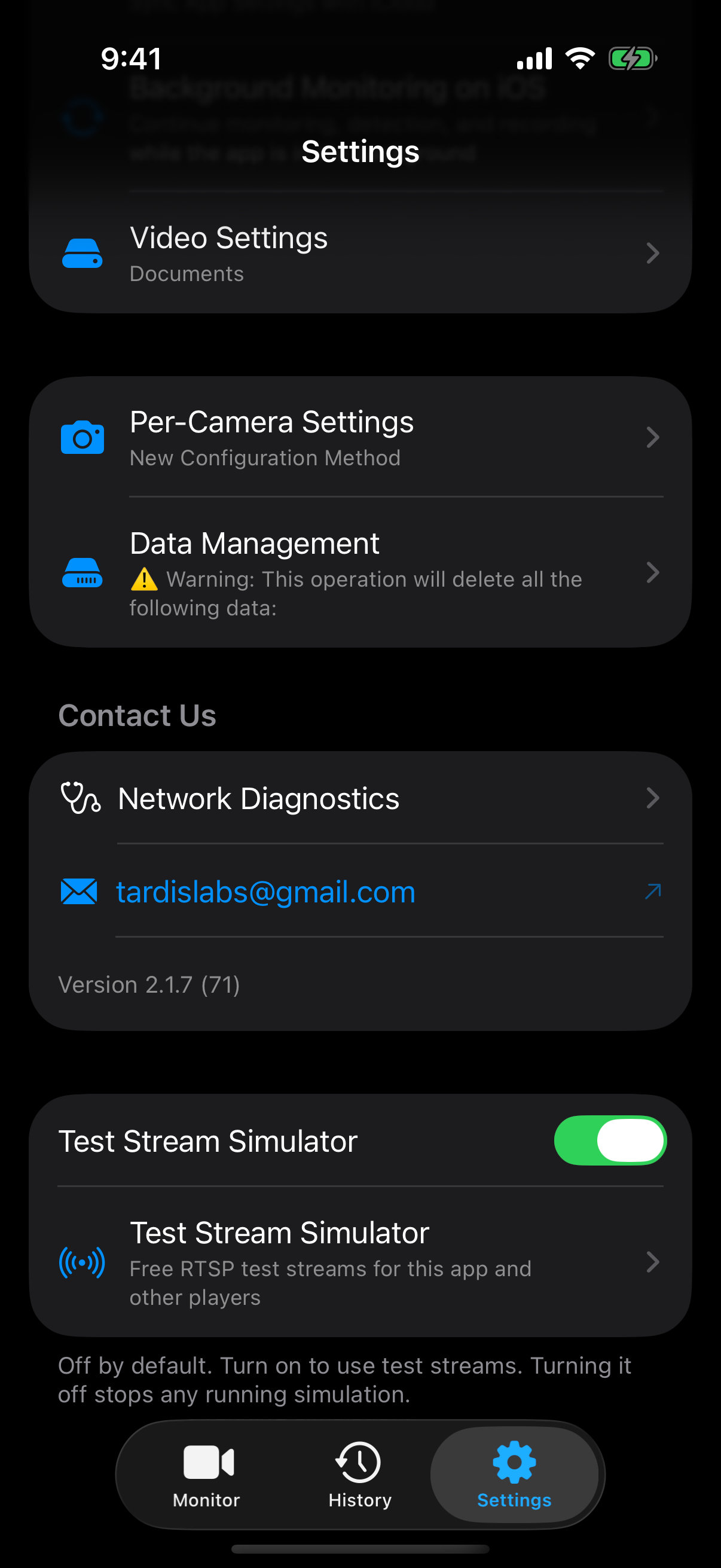
Enable the free Test Stream Simulator in Settings.
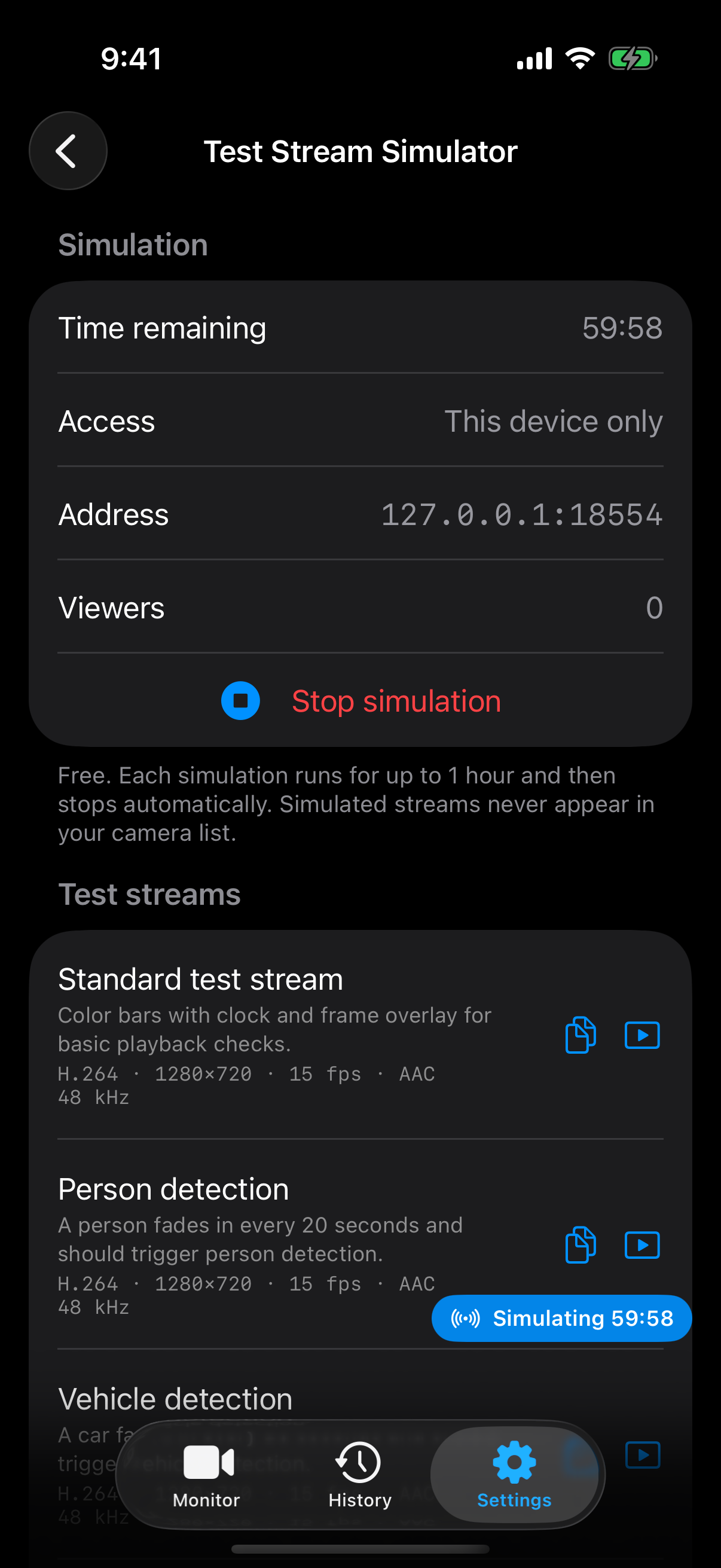
Start a session, choose a test stream and copy its address or open Preview.
10 ready-to-use test streams
Standard test stream
H.264 · 1280×720 · 15 fps · AACColor bars, a clock and a scrolling banner for first-picture and continuity checks.
/sim/barsPerson detection
H.264 · 1280×720 · 15 fps · AACA person fades in on a 20-second cycle to exercise a player's person detection.
/sim/personVehicle detection
H.264 · 1280×720 · 15 fps · AACA car fades in on a 20-second cycle for vehicle detection checks.
/sim/vehiclePerson and vehicle
H.264 · 1280×720 · 15 fps · AACAlternates a person and a car on successive 20-second cycles.
/sim/person-vehicleTwo people
H.264 · 1280×720 · 15 fps · AACTwo people appear at different times for person-count checks.
/sim/two-personsMotion detection test
H.264 · 1280×720 · 15 fpsA scene without a clock or scrolling banner. A ball moves during seconds 8–12 of each 20-second loop; audio is off. An expiry warning appears in the final 5 minutes of a session.
/sim/motion-test?a=noneH.265 1080p
H.265 · 1920×1080 · 25 fps · AACCheck HEVC decoding with a 1920×1080 stream at 25 fps.
/sim/bars?v=h265&res=1920x1080&fps=25H.265 4K
H.265 · 3840×2160 · 15 fps · AACCheck 3840×2160 HEVC playback at 15 fps; achievable performance depends on the devices.
/sim/bars?v=h265&res=3840x2160Low-bitrate substream
H.264 · 640×360 · 10 fps · G.711 μ-law640×360 at 10 fps and 384 kbps, with G.711 μ-law audio.
/sim/bars?res=640x360&fps=10&br=384&a=pcmuPortrait doorbell
H.264 · 720×1280 · 15 fps · G.711 A-law720×1280 portrait video with a person and G.711 A-law audio.
/sim/person?res=720x1280&a=pcmaCustom stream settings
The app offers six scenes, H.264 or H.265 video, nine resolutions, selectable frame rates and bitrates, and AAC, G.711 μ-law, G.711 A-law or no audio. Its default stream is H.264, 1280×720, 15 fps and AAC. Audio is a generated 1 kHz tone lasting about 150 ms each second, not microphone input.
Resolution choices include 320×240, 640×360, 640×480, 1280×720, 1920×1080, 2560×1440, 3840×2160, 720×1280 portrait and 3840×1080 ultrawide. The app offers 5, 10, 15, 20, 25, 30 or 60 fps; bitrate choices are automatic, 256, 512, 1000, 2000, 4000, 8000 or 12000 kbps. Start at 720p and increase one setting at a time.
For advanced URL editing, use /sim/ followed by a scene ID. Omitted parameters use the defaults. The URL accepts the ranges below; the app's pickers offer a smaller selection. GOP is a URL option, not an app picker. Unknown, duplicate or invalid parameters are rejected.
| URL parameter | Supported values |
|---|---|
v | h264 (default) or h265 |
res | Even width and height, each 160–3840; total pixels no more than 3840×2160. Default: 1280x720. |
fps | 1–60; default 15 |
br | 64–20000 kbps; omit for automatic |
gop | 1–10 seconds; default 2 |
a | aac (48 kHz, default), pcmu or pcma (8 kHz), none |
Build an example RTSP URL
Example only: start the simulator and use the address and port displayed in the app. This website does not generate or play RTSP streams.
Connect another device
- Stop the session before changing access or authentication. Select Local network and start again. Keep both devices on the same reachable network and allow local network access or firewall access when your system asks.
- Copy a preset address using the app's Copy address button. Use the Mac or iPhone's LAN address from the simulator; 127.0.0.1 always points back to the device running the player.
- With Basic or Digest enabled, the username is smartrtsp; use the generated password displayed in the app. Stop the session and choose Generate new password to replace it. The copied address can contain credentials, so remove them before sharing screenshots or logs.
- Open the URL with TCP transport. The simulator sends RTP over the RTSP TCP connection; an external player must support TCP. These streams are for your device or local network, not a hosted public test service.
What you can test
Playback, audio and display
Check the clock and moving banner, switch H.264/H.265, test portrait and ultrawide framing, and compare AAC/G.711 in a player. The built-in Preview checks video only and shows codec, resolution, first-frame time, fps and kbps. These are local preview measurements, not end-to-end network latency; use a player for audio.
Detection and event workflows
Enable the receiving player's supported detection features, then choose person, vehicle or two-person scenes. Use motion-test for motion checks: the clock and scrolling banner in other scenes cause constant image changes. Detection results depend on the receiver and its settings.
Recording, multiple views and reconnect
If your receiving app supports them, test recording playback and multiple views using copied URLs. Stop and restart a session to observe reconnect behavior, then check the current port and address. Up to 16 RTSP connections are allowed, with up to 8 distinct stream specifications on Mac or 4 on iOS; matching specifications share an encoder. Actual capacity depends on your devices. Recording and detection are features of the receiving app.
Troubleshooting
Another device cannot connect
Check Local network access, the current IP and port, firewall rules and Wi-Fi client isolation. Do not use 127.0.0.1 on a different device. Confirm the session is running and select TCP.
Authentication fails or there is no sound
Use the current generated password and matching authentication mode. For sound, choose an audio-enabled preset and open it in a player; motion-test is silent and the built-in preview has no audio playback.
The stream stops or 4K will not start
Each session ends after 1 hour. Keep the iOS app in the foreground and the Mac awake during testing; background execution is not guaranteed. Try H.264 at 720p and a lower frame rate if encoding or decoding is unavailable.
Too many streams or error 453
Stop a different stream specification before opening another: Mac allows up to 8 active specifications, iOS up to 4. Reducing resolution or frame rate can also help with device load. Use the same URL for multiple viewers when you want them to share one specification.
Frequently asked questions
Is the RTSP simulator really free?
Yes. The simulator itself is free, with a 1-hour limit per session. Start a new session for another test. This does not mean every recording, detection or other feature in the receiving app is free.
Do I need a camera, video file or public RTSP URL?
No. SmartRTSP generates test pictures and test audio on your Apple device. No physical camera or video file is needed. The website provides instructions and example URLs; the app serves the stream.
Can I test ONVIF discovery, PTZ or real camera accuracy?
This simulator provides RTSP media streams. It does not simulate an ONVIF camera or mechanical PTZ. Synthetic scenes help exercise detection workflows but do not measure real-world recognition accuracy.
Can I leave it running as a permanent camera server?
It is designed for temporary testing: sessions stop after 1 hour, and iOS may suspend the app in the background. Recheck the displayed URL after starting a new session.