App Store · Microsoft Store · Google Play

SmartRTSP IP camera viewer · RTSP / ONVIF

IP camera viewer · RTSP / ONVIF

SmartRTSP is an RTSP viewer and player for compatible IP cameras and recorder streams. Add a documented camera address or use supported ONVIF discovery, then check the live picture on your own device.

AI Detection Multi-Camera Local by default ONVIF PTZ Control
Available on
iPhone · iPad · Mac · Apple TV
Capabilities

Live camera views
and event monitoring

View your cameras, review recordings, and get alerts for the events you choose. Features and Pro requirements vary by platform.

AI Detection

Supported devices analyze camera feeds locally to detect people, motion, and selected events.

Multi-Camera Grid

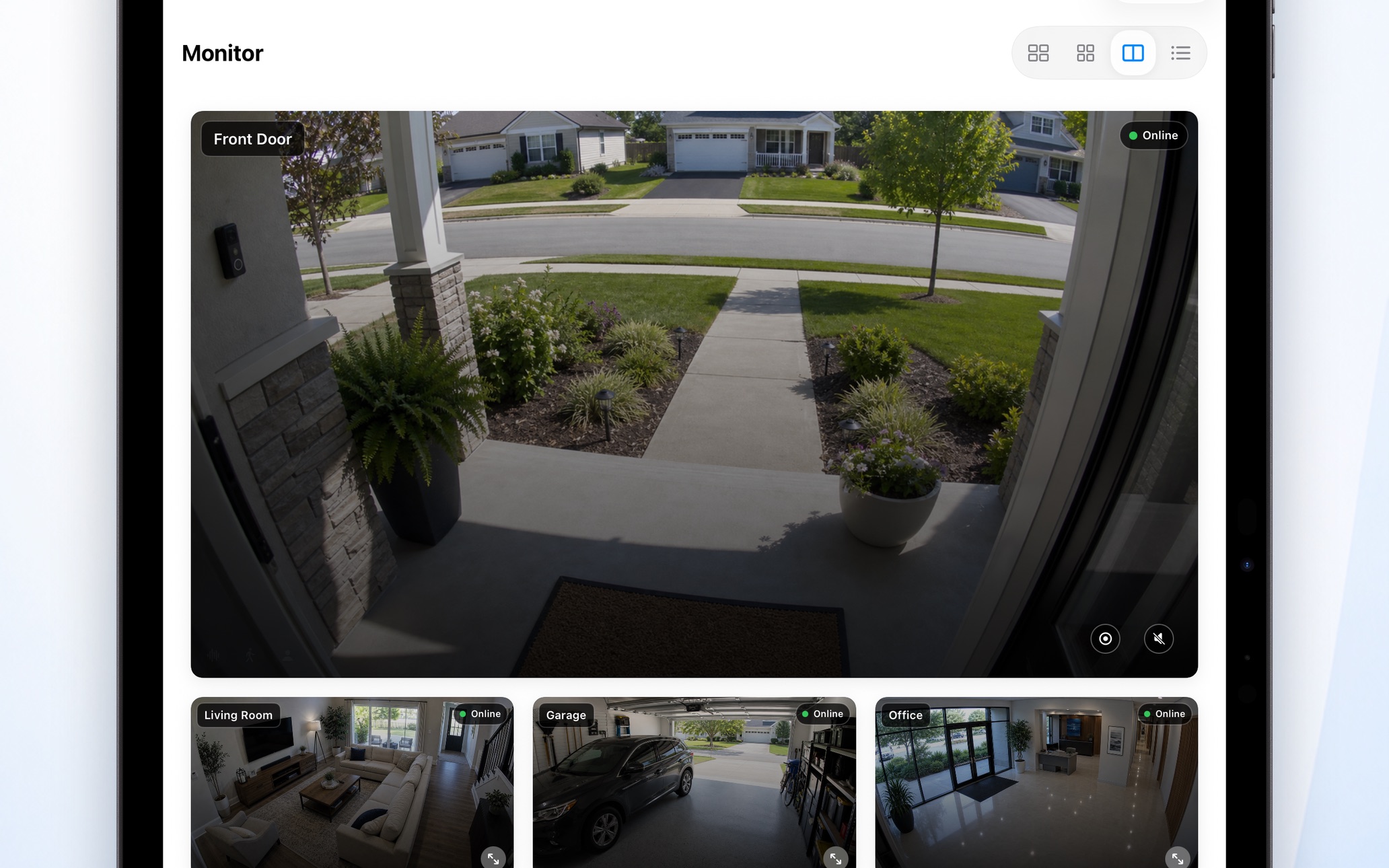
View several cameras on one screen with Pro. Available layouts depend on the device and app version.

Smart Recording

Save recordings locally on supported devices. Check the app for recording modes, storage options, and trial or Pro access.

Sound detection

If your camera stream includes audio, supported versions can recognize sounds such as doorbells and alarms.

Smart Notifications

On supported versions, choose local notifications, email via SMTP, or webhooks for the events you want to follow.

Privacy-First

Local by default · Camera processing on your device · Remote viewing is optional · Relay services only when enabled · Technical error reports · No images, videos, or personal names

PTZ Control

Pan, tilt, zoom, and use presets on compatible ONVIF cameras. The controls shown depend on what your camera supports.

Danger Zone Monitoring

On supported devices, mark an area in the camera image and set an alert for when someone enters it.

Available now

Apple Home Support — macOS

Use SmartRTSP on Mac as a simple path from RTSP and ONVIF cameras to Apple Home. Add Hikvision, Reolink, Dahua, Wyze, and more to SmartRTSP, then continue the Apple Home setup on your Mac.

Apple Home Mac RTSP cameras ONVIF cameras
Learn more →
New

YouTube Live Push — RTMPS

Push Wyze, Hikvision, Dahua, Reolink, Tapo and other RTSP/ONVIF cameras directly to YouTube Live, Twitch, Facebook or custom RTMP.

YouTube RTMPS IP cameras
Learn more →
4+
Simultaneous Streams
15+
AI Detection Types
Gallery

See it in action

Real screenshots — no mockups, no stock photos.

Choose your viewing device

Watch compatible RTSP or ONVIF cameras on iPhone, iPad, Mac, Apple TV, Windows or Android. Start with one camera on your local network, then check the viewing, recording and remote features available on your device.

Test your camera and device first

Test live video, audio, PTZ controls, reconnection and recording separately. A camera brand alone does not establish compatibility with every model. Keep your existing recorder if you need uninterrupted recording and storage.

SmartRTSP is free to download. Access terms and Pro plans vary by platform; check the installed app and its store listing.

Free trials and Pro

Platforms

IP camera viewer Apple · Windows · Android

iPhone · iPad · Mac · Apple TV · Windows · Android. This policy covers SmartRTSP on supported Apple devices, Windows, Android phones and tablets, and Android TV televisions with built-in Google Play. Features vary by platform.

iOS / iPadOS

SmartRTSP for iPhone & iPad

Watch compatible cameras on your local network. For setup and requirements outside your local network, see Remote Viewing.

  • Background detection with battery-saving mode
  • Save recordings to Photos library or Files app
  • Portrait & landscape orientation support
  • ONVIF auto-discovery on local network
  • AI sound classification — 521 sound categories on-device
Download on App Store
macOS

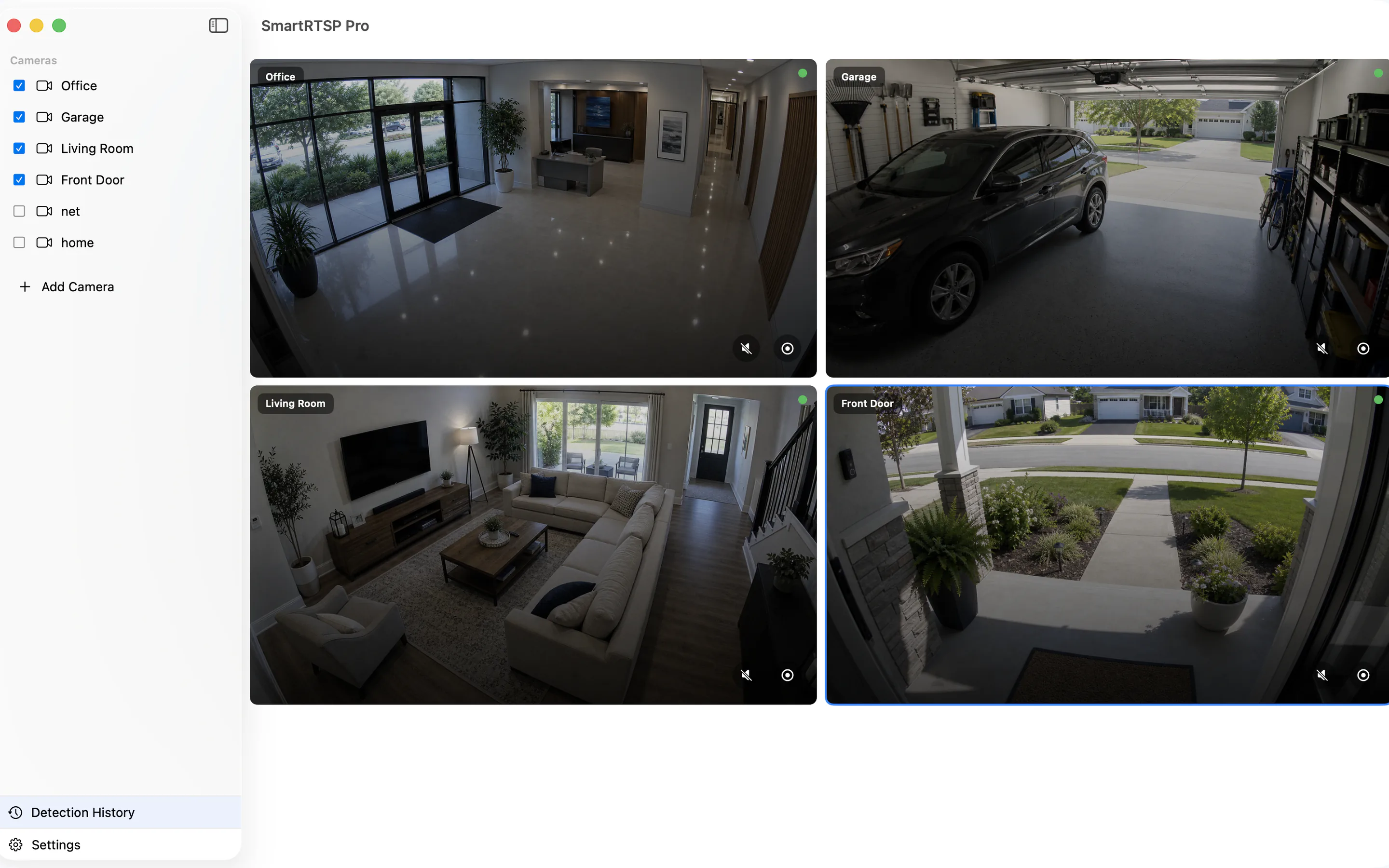
SmartRTSP for Mac

A powerful monitoring station on your desktop. Full keyboard shortcuts, sidebar layout, and Metal GPU acceleration for professional-grade performance.

  • Compact sidebar with split-view layout
  • Metal GPU acceleration for AI voice enhancement
  • Keyboard shortcuts (⌘N, ⌘K, and more)
  • Recordings saved to ~/Movies/SmartRTSP/
  • Apple SoundAnalysis for superior audio detection
Download on Mac App Store
Apple TV

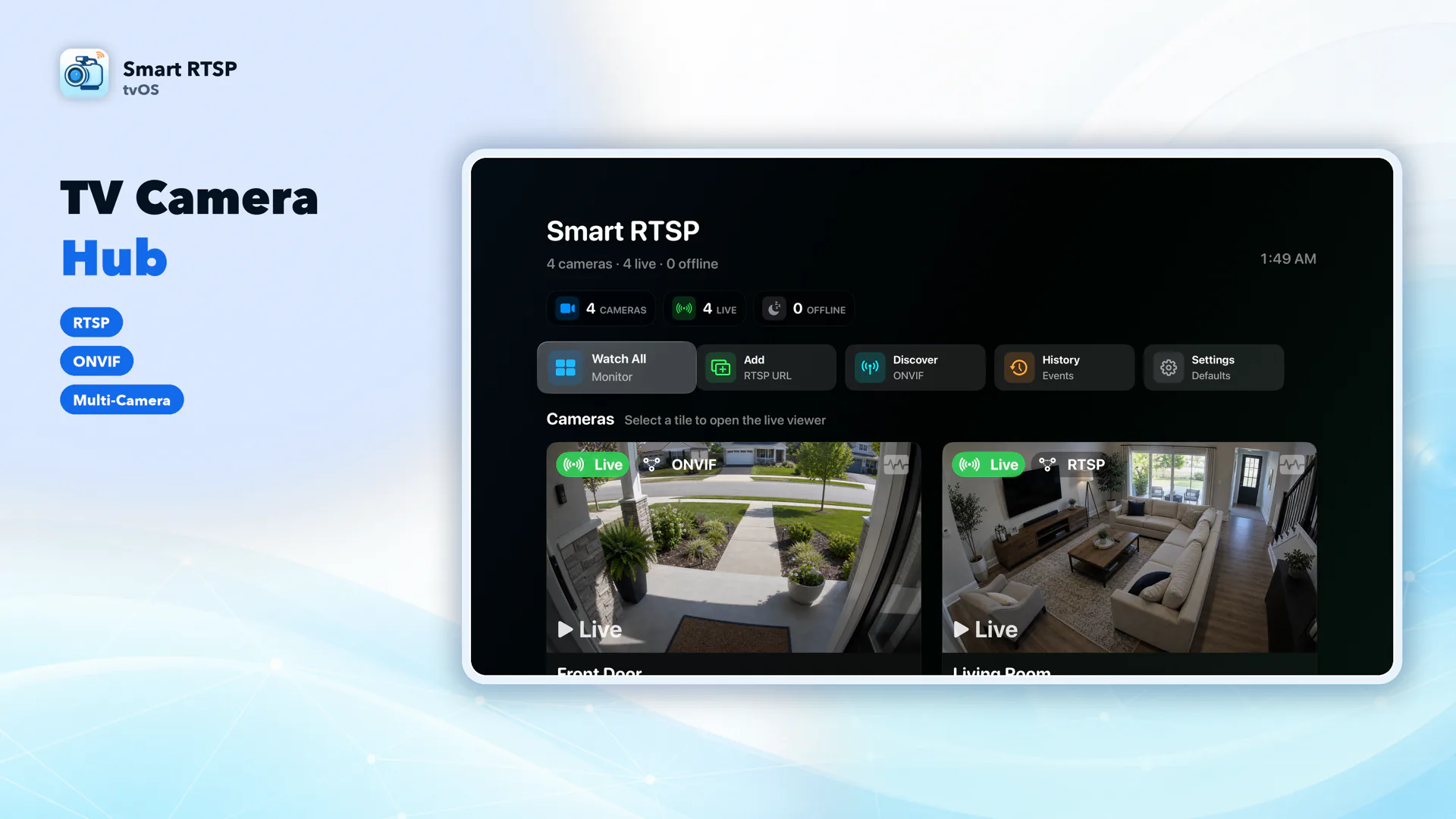
SmartRTSP for Apple TV

Turn your TV into a local RTSP and ONVIF camera monitor. Built for Siri Remote, with layouts for up to 9 cameras and ONVIF PTZ.

  • Siri Remote focus-based navigation
  • 4-, 6-, or 9-camera monitor layouts
  • ONVIF auto-discovery on local network
  • ONVIF PTZ control from the couch
  • Recording & history: 24-hour trial / Pro
Available on Google Play

Android phone and tablet

Download SmartRTSP for Android phones and tablets on Google Play.

Eligible Android TV and Google TV televisions can install SmartRTSP directly when the TV includes Google Play and shows Install for the app.

SmartRTSP on Android TV / Google TV →

RTSP viewer and player guides

Watch your cameras on Apple TV with SmartRTSP

Choose your camera brand for local RTSP and ONVIF setup on Apple TV: model requirements, stream settings, connection steps and troubleshooting.

Choose your camera brand
Compatibility

Works with your cameras

Connect compatible IP cameras or recorder channels using RTSP or ONVIF. Check the exact model and firmware for available features.

Wyze
RTSP firmware
Reolink
ONVIF + RTSP
Hikvision
ONVIF
Amcrest
ONVIF + RTSP
Dahua
ONVIF
Eufy
RTSP (select models)
Foscam
ONVIF + RTSP
Annke
ONVIF + RTSP
Lorex
ONVIF + RTSP
TP-Link Tapo
ONVIF + RTSP
Axis
ONVIF + RTSP
Bosch
ONVIF + RTSP
Xiaomi
RTSP (custom firmware)
Any ONVIF / RTSP
Universal compatibility

RTSP Setup Guide

Common stream URLs for popular camera brands. Replace user, pass and IP with your camera's credentials and IP address.

Wyze
rtsp://user:pass@IP:322/stream0
  • ▸Only select Wyze firmware versions support RTSP — download the RTSP firmware from wyze.com for compatible models
  • ▸In the Wyze app, open the camera detail page → Settings → Advanced Settings → RTSP Settings → Enable
Guides
Reolink
rtsp://user:pass@IP:554/h264Preview_01_main
  • ▸Replace main with sub for a lower-resolution sub-stream
  • ▸RTSP enabled by default on most Reolink cameras on port 554
Guides
Hikvision
rtsp://user:pass@IP:554/Streaming/Channels/101
  • ▸Channel 1 main stream = 101, sub-stream = 102; channel 2 = 201
  • ▸Enable RTSP under Configuration → Network → Advanced Settings
Guides
Amcrest
rtsp://user:pass@IP:554/cam/realmonitor?channel=1&subtype=0
  • ▸subtype=0 for main stream, subtype=1 for sub-stream
  • ▸Enable RTSP in the camera web admin under Network → Connection
Guides
Dahua
rtsp://user:pass@IP:554/cam/realmonitor?channel=1&subtype=0
  • ▸Same URL format as Amcrest (Dahua OEM). Use ONVIF auto-discovery for quick setup
  • ▸subtype=0 main, subtype=1 extra, subtype=2 mobile stream
Guides
Eufy
rtsp://user:pass@IP/live0
  • ▸Enable RTSP in Eufy app → Camera Settings → Advanced → Enable RTSP Stream
  • ▸Available on select indoor cameras; outdoor battery cameras may not support RTSP
Guides
Foscam
rtsp://user:pass@IP:88/videoMain
  • ▸Default RTSP port is 88; some newer models use port 554
  • ▸Sub-stream: /videoSub. Enable RTSP in the camera web UI settings
Guides
Annke
rtsp://user:pass@IP:554/Streaming/Channels/101
  • ▸Uses Hikvision-compatible protocol. Channel 1 main = 101, sub = 102
  • ▸Use SmartRTSP's ONVIF scanner for automatic discovery on your local network
Guides
Lorex
rtsp://user:pass@IP:554/Streaming/Channels/101
  • ▸Hikvision-compatible NVR format. Works with both standalone cameras and NVR systems
  • ▸Enable RTSP from the NVR web interface or Lorex Home app settings
Guides
TP-Link Tapo
rtsp://user:pass@IP:554/stream1
  • ▸Create a Camera Account under Advanced Settings in the Tapo app.
  • ▸Use the camera account’s username and password for RTSP. Use stream2 for standard quality.
Guides
Axis
rtsp://user:pass@IP/axis-media/media.amp
  • ▸Append ?videocodec=h264 to force H.264 encoding for best compatibility
  • ▸Professional grade — verify ONVIF profiles by exact model and firmware; try ONVIF scanner first
Guides
Bosch
rtsp://user:pass@IP/rtsp_tunnel
  • ▸ONVIF support varies by Bosch model and firmware — try discovery first, then check product documentation
  • ▸Some models: rtsp://IP/video?inst=1&h26x=4
Guides
Xiaomi / Mi / Aqara
rtsp://admin:pass@IP:554/live/ch00_0
  • ▸Aqara G2H / G3: enable RTSP in Aqara Home app → Settings → Advanced; also supports ONVIF auto-scan
  • ▸Mi Home cameras (Xiaofang/Dafang): custom RTSP firmware required — use rtsp://IP:8554/unicast
Guides
Any ONVIF / RTSP Camera
rtsp://user:pass@IP:port/stream_path
  • ▸Use SmartRTSP's built-in ONVIF scanner to auto-discover cameras on your local network
  • ▸Supports H.264 and H.265/HEVC streams — works with any standard RTSP-compatible device
FAQ

Frequently asked questions

What cameras are compatible with SmartRTSP?

Look for RTSP or ONVIF support in the documentation for your camera or recorder. Some models require you to enable local streaming or create a separate camera account.

Does SmartRTSP send my video to the cloud?

Local viewing does not require a SmartRTSP account. Camera configurations, credentials, recordings, snapshots, and event history are stored on your device or in a location you choose. Supported AI processing runs on your device. Camera, microphone, and local-network access are used for the features you enable. If you enable remote viewing, camera video is sent over the internet to your viewing device and may pass through a relay server that forwards the video stream. If remote viewing is disabled, SmartRTSP does not contact remote-viewing or relay services. This does not disable the separate error reports or other services described below. Android and Windows may send technical reports when crashes or exceptions occur to help diagnose errors. Reports contain error information such as error types, code stack traces, and app or system versions. They do not collect images, videos, recordings, camera names, user names, camera addresses, or login credentials. Error reporting may use the internet even when remote viewing is disabled.

Does SmartRTSP work without an internet connection?

Yes. Live viewing, camera discovery, AI detection, and recording on your local network can work without internet. Optional remote viewing needs an internet connection, as do optional iCloud sync and app updates.

Is SmartRTSP free?

SmartRTSP is free to download. Access terms and Pro plans vary by platform; check the installed app and its store listing.

How do I connect my Hikvision or Reolink camera?

Put your viewing device on a network that can reach the camera. Add the RTSP address documented for your model, or try ONVIF discovery if the camera supports it. Open live view to confirm the correct channel.

Can I monitor multiple cameras at the same time?

Yes. Pro offers a multi-camera grid on supported platforms. Apple TV can show up to nine camera feeds at once. Check the layouts on your own device.

What AI detection features does SmartRTSP include?

On supported devices, SmartRTSP can detect people, motion, and sounds such as doorbells or alarms. Processing runs on the device. Available detection types vary by platform.

Guides & Resources

Everything you need to get started

Step-by-step guides, troubleshooting help, and comparisons — all free.

Start monitoring
smarter today

SmartRTSP is free to download. Access terms and Pro plans vary by platform; check the installed app and its store listing.

NVR App

Need a dedicated local NVR? Explore OmniNVR →