 SmartRTSP
Install SmartRTSP on Apple TV
Update SmartRTSP on both devices and connect them to the same local network. Allow Local Network access if asked. Check that both apps have access to this feature and that Apple TV has room to save the cameras.
SmartRTSP · iPhone (iOS 17.5+) · SmartRTSP · Apple TV (tvOS 17.0+)
Add the camera in SmartRTSP
On Apple TV, open Settings → Import from iPhone and leave the eight-character code on screen.
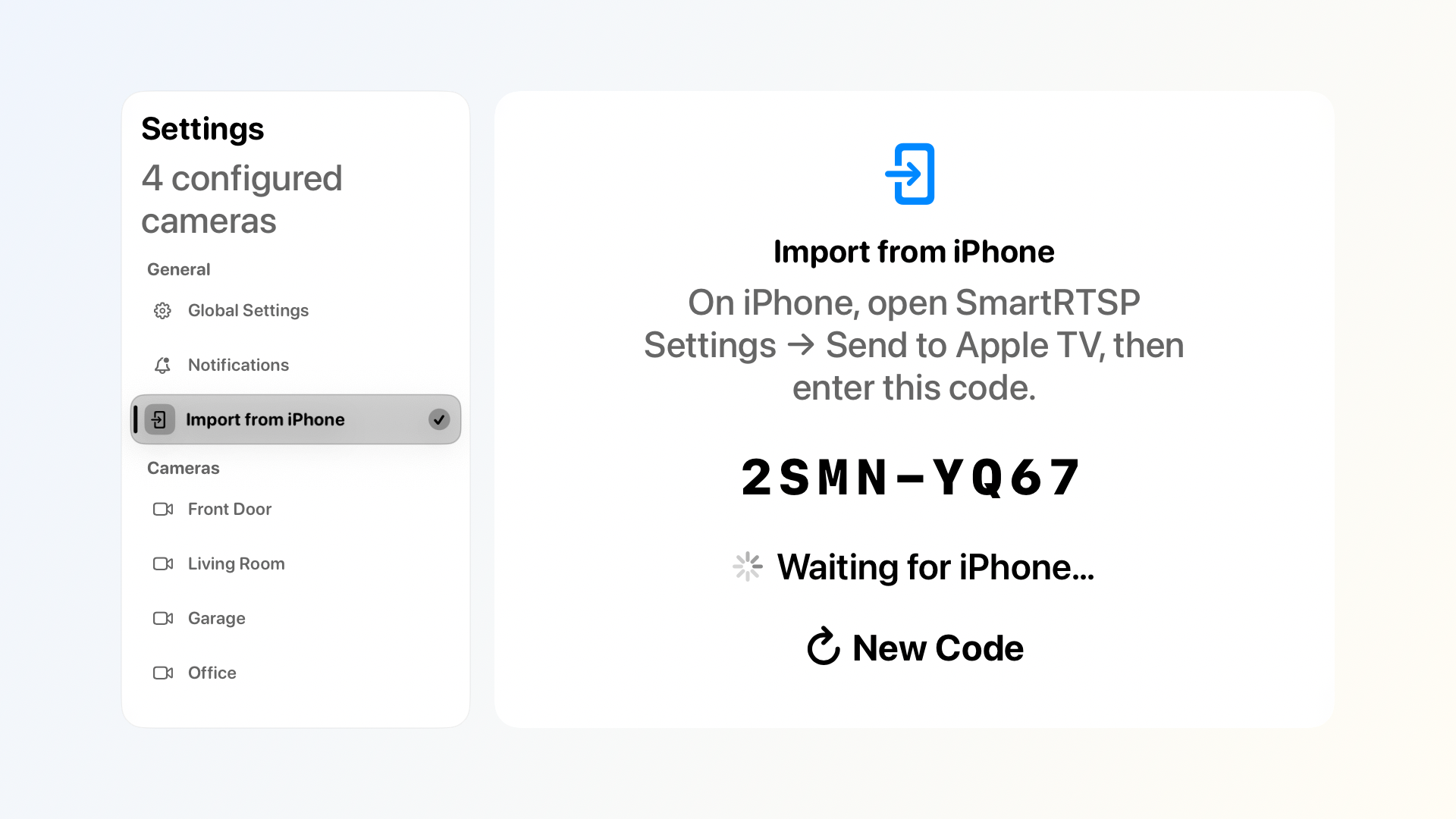
This screenshot shows an example code. Use the code on your own Apple TV. On iPhone, open Settings → Per-Camera Settings → Send to Apple TV. Enter the code, select the network cameras to copy, then choose your TV under Nearby Apple TVs.
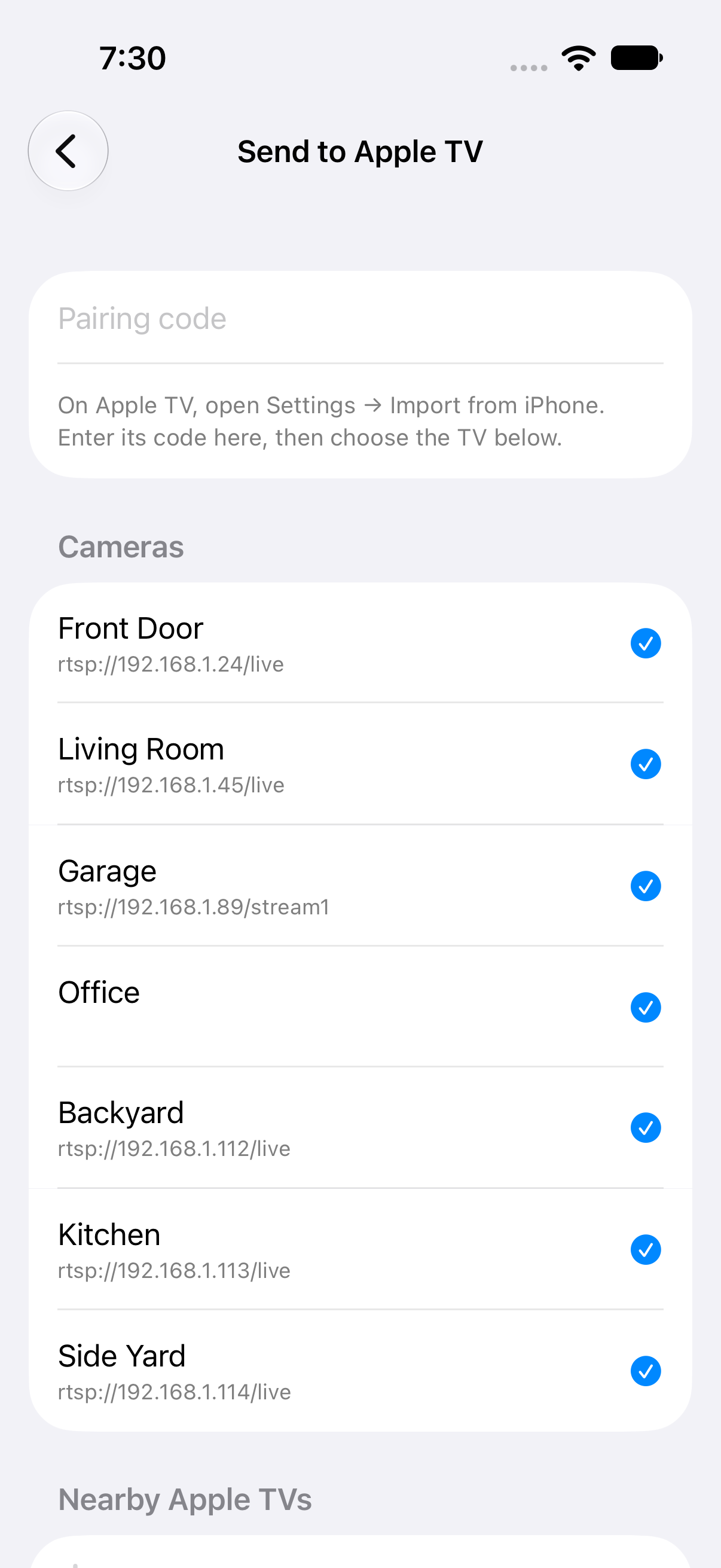
iPhone · Send to Apple TV Wait for the iPhone to confirm the TV saved the cameras. Open a camera on Apple TV and check that live video appears. If you need audio or PTZ, test those controls separately.
If the picture does not appear
If the TV does not appear, keep the import screen open, check Local Network permission and avoid isolated guest Wi-Fi. If the code is rejected, choose New Code on the TV and enter the new code. Check the TV camera list before trying again after a timeout. Go back on both devices to close the pairing screens.
If you know the stream address, select “Add Manually”. Give the camera a name and enter the full rtsp:// or rtsps:// URL, plus the device username and password if required. Select “Test Connection”, then “Save”.
Privacy
The encrypted local transfer includes selected camera settings and credentials. Recordings stay on the original device. An existing camera with the same ID or stream address can be updated. A saved camera still needs to be reachable from the TV. Pairing works independently of iCloud.